5 Vertical Monitor Myths That Actually Waste Your Time (2026)
Ops leads, stop manual work. We debunk 5 vertical monitor myths for programming efficiency. Get proven setups for faster workflows. Compare now →
Introduction: Are Vertical Monitors Really the Efficiency Hack You Need?
>As an Operations Lead, you're always looking for ways to boost team productivity and smooth out workflows, especially with so many people working remotely. Everyone wants the perfect developer setup. Often, the <hunt for an optimized remote work programming setup> leads to talks about specialized tools. The <vertical monitor for remote work programming has become really popular, with many calling it a game-changer for seeing more code and cutting down on scrolling. But is this widely adopted "hack" actually making things better, or could it be quietly draining time, money, and even developer morale? We're going to dig into five common myths about vertical monitors that might be costing your team valuable time and hurting their long-term productivity.
1. The Common Belief: Vertical Monitors Equal More Code on Screen & Fewer Scrolls
Browse almost any developer forum, or scroll through "desk setup" photos online, and you'll definitely see passionate arguments for vertical monitors. The core idea is simple, and on the surface, it makes perfect sense: "If a typical line of code is short, then rotating your monitor 90 degrees lets you see way more lines at once. This should mean less scrolling and a big productivity boost."

This assumption really clicks with programmers who spend hours sifting through long code files, config scripts, or database queries. The promise is clear: less fiddling with the mouse wheel, direct visual access to the code, and ultimately, faster problem-solving. It just feels right. You'll spot developers with two, sometimes three, monitors, often with one or two in portrait mode. They're usually displaying their IDE, a terminal, or a long document. The visual appeal of a huge block of code stretching vertically seems to confirm its usefulness, cementing this belief as a staple in the remote programming toolkit.
Myth #1 Debunked: 'More Lines of Code on Screen' Doesn't Translate to Faster Work
>Here's the reality check. While a vertical monitor absolutely shows more lines of code simultaneously, jumping to "faster work" is a cognitive trap. Our brains aren't just simple data processors; they're complex interpretive engines. How we consume information profoundly impacts efficiency. Think about research on optimal line length for readability, a common topic in typography and UX design. Studies, like those from the Baymard Institute on web content or even older findings on print media, suggest an ideal line length for comfortable reading is usually between 50-75 characters (including spaces). This range helps minimize eye strain and lets the reader quickly find the start of the next line without getting lost.<
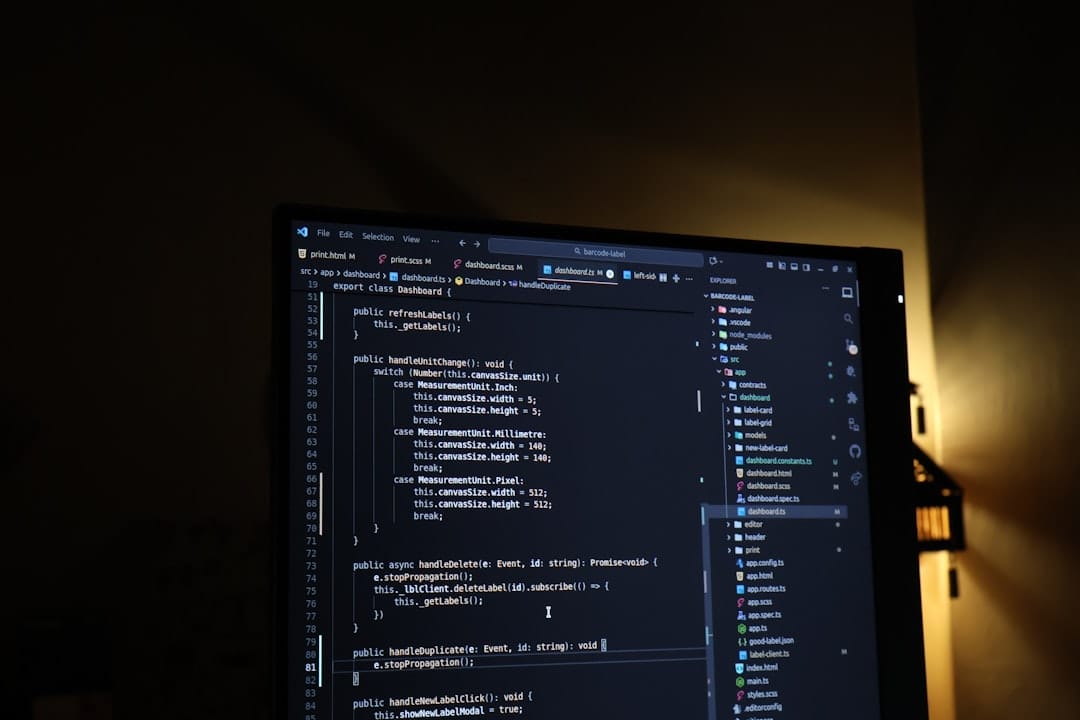
When you pack 100+ lines of code onto a vertical 27-inch monitor, you aren't necessarily making it easier to read. Instead, you're forcing your eyes to scan a much larger vertical area. This increases the cognitive load needed to track information. Imagine trying to read a newspaper column that's 50 lines long without any clear breaks; it's exhausting. For code, where context, variable names, and function definitions are crucial, too many lines can lead to:
- Increased Scanning: Your eyes are darting up and down more, not less. The "scroll" action gets replaced by intense vertical eye movement.
- Reduced Comprehension: The sheer volume can make it harder to absorb related chunks of code. Our brains often process information better in smaller, digestible blocks.
- Context Switching Fatigue: If you're staring at a giant block of code vertically and then need to look at a horizontal browser window or another tool, the drastic change in visual field can be disorienting and tiring.
The real goal isn't just "more code"; it's "more *effectively viewable* code." Honestly, a well-configured horizontal setup with smart window management and a modern IDE's folding features often gives you superior *effective* screen real estate without overwhelming the developer's visual processing.
Myth #2 Debunked: Vertical Screens Are Best for Diffing and Long Log Files
Another common argument for the vertical monitor for remote work programming is that it's supposedly better for tasks like code diffing (comparing two code versions) and reviewing long log files. Again, the logic seems solid: these are inherently vertical data streams, so a vertical display should be perfect, right?

>However, this view often ignores both ergonomic realities and what modern software can do. Our natural eye movement tends to be horizontal for reading. While we can scan vertically, sustained vertical reading, especially across the full height of a big monitor, can cause neck strain as developers crane their necks up and down. Think about it: when you compare two code blocks side-by-side, you're not just looking up and down; you're also frequently shifting horizontally between the two panels. A vertical monitor forces a very narrow horizontal field of view, potentially making these horizontal shifts more jarring.<
Beyond that, modern tools have gotten much better.
- Code Diffing: Advanced IDEs (like VS Code, IntelliJ IDEA, or even GitHub's web interface) offer sophisticated diffing tools. These highlight changes, allow inline comparisons, and even provide three-way merges, often optimized for horizontal displays. These tools focus on *showing you the differences intelligently*, not just dumping raw lines onto a screen.
- Log File Review: Dedicated log analysis tools (e.g., Splunk, ELK Stack, Loggly, or even advanced grep/awk commands in a well-configured terminal) offer filtering, search, and pattern recognition. These features make reviewing massive log files far more efficient than simply scrolling through raw text on a tall screen. These tools significantly reduce the *need* to visually scan every single line.
Relying on a vertical monitor for these tasks can sometimes be a band-aid solution. It might just mask a lack of familiarity with more powerful, purpose-built tools that would genuinely provide better efficiency and reduce physical strain.
Myth #3 Debunked: Vertical Monitors Are Ergonomically Superior for Programmers
This myth is probably the most harmful, since it directly affects developer health and long-term productivity. The claim often suggests a vertical screen encourages better posture or reduces certain types of strain. In reality, for many, the opposite is true.
Take a typical 27-inch monitor rotated vertically. It becomes a very tall display. To comfortably view the top and bottom of this screen, a developer often has to make significant head and neck movements – craning up to see the top, and down to see the bottom. Over an 8-hour workday, this repetitive motion can lead to:
- Neck Strain: Constant up-and-down head movements are unnatural and can stress cervical muscles. I've seen developers practically doing neck exercises all day.
- Eye Fatigue: Shifting focus across such a large vertical expanse can be more tiring for the eyes than a more contained horizontal view.
- Poor Posture: To avoid neck strain, some developers might slouch or lean back, moving their posture away from the ergonomically ideal upright position. This leads to back and shoulder issues.
Ergonomics isn't just about monitor position; it's about the whole interaction between the human body and the workspace. A truly ergonomic setup minimizes repetitive strain, keeps the body in neutral postures, and encourages healthy movement breaks. A horizontal monitor setup, especially when properly positioned at eye level and arm's length, allows for a wider, more natural field of view with less strenuous head movement. When I've personally experimented with a vertical monitor for extended coding sessions, I invariably found myself adjusting my chair, my neck, and ultimately feeling more fatigued than with my standard horizontal dual-monitor setup.
The long-term impact of poor ergonomics isn't just discomfort; it's reduced focus, more sick days, and potential chronic health issues. All of these directly affect your team's output and your operational budget.
What Actually Works: Proven Monitor Setups for Peak Remote Programming Efficiency
Enough with the myths. Let's talk about what actually helps remote developers achieve peak efficiency. The best setups balance cognitive comfort with ergonomic health. They prioritize minimizing unnecessary eye/head movement, maximizing *useful* screen real estate, and supporting a fluid workflow.
Here are the configurations that consistently deliver:
- Dual Horizontal Monitors (Same Size, Aligned): This is arguably the most common and effective setup for professional programmers.
- Why it works: It gives you plenty of screen real estate for an IDE on one screen and documentation, a browser, or communication tools on the other. Consistent size and alignment (ideally with thin bezels) allows for seamless window transitions. Your eyes move horizontally between screens, which is more natural than constant vertical scanning.
- Recommended Specs: Two 24-inch or 27-inch monitors, ideally 1440p (QHD) resolution. QHD offers a significant pixel density upgrade over 1080p without being overly demanding on graphics cards or requiring aggressive scaling.
- My pick: For a balance of price and performance, the Dell UltraSharp U2723QE (27-inch 4K) offers excellent color accuracy, USB-C connectivity, and a solid stand. If 4K feels like overkill, the Dell UltraSharp U2722DE (27-inch QHD) is a fantastic option.
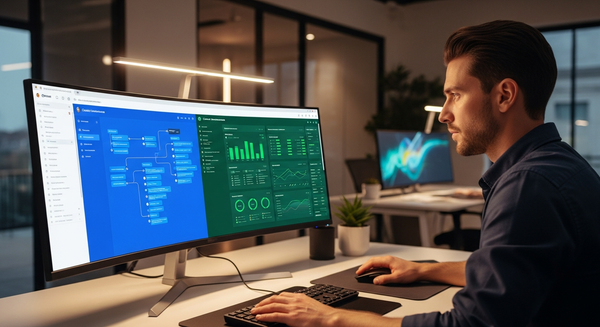
- Single Large Ultrawide Monitor: For those who prefer a single, expansive canvas without bezels, an ultrawide can be incredibly powerful.
- Why it works: It provides a continuous, immersive workspace. You can effectively split the screen into two or three virtual monitors, allowing for an IDE, browser, and terminal all visible without physical gaps. The horizontal aspect ratio is perfect for our natural eye movement.
- Recommended Specs: A 34-inch or 38-inch ultrawide with a 21:9 or 24:10 aspect ratio. A gentle curve (e.g., 1800R or 1900R) can enhance immersion and reduce eye strain by keeping all parts of the screen equidistant from your eyes. Resolution should be at least 3440x1440 for a 34-inch, or 3840x1600 for a 38-inch.
- My pick: The LG 34WN780-B Ergo UltraWide Monitor combines a great panel with an incredibly flexible ergonomic arm, perfect for adjusting to individual needs. For a premium experience, the Dell UltraSharp U3824DW (38-inch curved) is a productivity powerhouse.
- Strategic Use of Virtual Desktops/Window Managers: Regardless of your physical monitor setup, mastering virtual desktops (e.g., macOS Spaces, Windows Desktops, Linux workspaces) and advanced window managers (e.g., FancyZones for Windows, i3wm for Linux) is crucial.
- Why it works: This allows developers to quickly switch between task-specific environments, reducing clutter and mental overhead. One desktop for coding, another for communication, another for research. It's about optimizing *context switching* rather than just screen real estate.
- Actionable Tip: Encourage your team to dedicate 30 minutes a week to exploring their OS's built-in window management features or trying a tool like Microsoft PowerToys FancyZones. The learning curve is minimal, and the payoff is significant.
These setups translate into tangible efficiency gains: faster task completion due to less visual searching, fewer errors from improved focus, and significantly reduced fatigue at the end of the day. It's about working smarter, not just seeing more.
Amazon — Check price on Amazon
Practical Alternatives: Optimizing Your Workspace Beyond Monitor Orientation
>While your monitor setup is super important, it's only one piece of the remote work efficiency puzzle. A truly optimized programming workspace takes a holistic approach. It recognizes that every element contributes to a developer's focus, comfort, and output. As an Operations Lead, you know that small gains across multiple factors can lead to big overall improvements. Here’s how to expand your optimization efforts:<
The Foundation: Desk and Chair
- High-Quality Standing Desk: The ability to switch between sitting and standing is a game-changer for long-term health and focus. Standing desks reduce sedentary time, improve circulation, and can even boost energy levels. Look for sturdy, electric models with programmable height presets.
- Recommendation: The Uplift Desk V2 Commercial or the FlexiSpot E7 Pro are excellent, sturdy choices that offer stability even at maximum height.
- Ergonomic Chair: This is non-negotiable. A good chair provides lumbar support, adjustable armrests, and proper seat pan depth. It promotes a neutral spine and reduces back pain.
- Recommendation: The Herman Miller Aeron (a classic for a reason) or the Steelcase Gesture are top-tier investments. For more budget-conscious options that still deliver, consider the Autonomous ErgoChair Pro.
Input Devices: Your Daily Interface
- Ergonomic Keyboard: Mechanical keyboards offer superior tactile feedback, reducing typing errors and fatigue. Consider options with split designs or tenting features to keep wrists in a more natural position.
- Recommendation: The Keychron K2 V2 (wireless mechanical) is a great all-rounder. For advanced ergonomics, the Kinesis Freestyle Edge RGB offers split and tenting capabilities.
- Precision Mouse/Trackball: A comfortable mouse that fits the hand, or a trackball that reduces wrist movement, is crucial.
- Recommendation: The Logitech MX Master 3S is industry-leading for productivity. For trackball enthusiasts, the Logitech MX Ergo is a solid choice.
Environmental Factors: Often Overlooked
- Proper Lighting: Avoid glare and shadows. Use diffuse, indirect lighting. A monitor light bar can effectively illuminate your desk without reflecting off the screen.
- Recommendation: The BenQ ScreenBar Halo is excellent for reducing eye strain and providing adjustable lighting.
- Noise Management: Quality noise-canceling headphones can be invaluable for deep work, especially in shared remote environments.
- Cable Management: A tidy workspace reduces visual clutter and mental distraction. Invest in cable ties, sleeves, and under-desk trays.
By addressing these components comprehensively, you’re not just providing tools; you’re investing in a developer's physical comfort, cognitive flow, and ultimately, their sustained high performance. A 1% improvement across ten different aspects of a workspace often yields greater returns than a perceived 10% improvement in just one area.
FlexiSpot — See FlexiSpot standing desks
How to Apply This: Concrete Steps for Operations Leads to Boost Developer Productivity
As an Operations Lead, turning these insights into actionable strategies is paramount. Your goal is to create an environment where developers can perform at their best, supported by tools and practices that genuinely enhance efficiency, not just look good. Here’s a step-by-step guide to implementing these changes:
- Assess Current Developer Setups:
- Action: Conduct a brief, anonymous survey or hold informal feedback sessions. Ask about current monitor configurations, ergonomic challenges, and perceived workflow bottlenecks related to screen real estate.
- Metric to track: Qualitative feedback on comfort and workflow frustrations.
- Educate Teams on Ergonomic Best Practices:
- Action: Host a short workshop (or share a curated resource list) on proper monitor placement, chair adjustment, keyboard/mouse posture, and the benefits of movement breaks. Debunk the vertical monitor myths directly but constructively.
- Metric to track: Participation rates, self-reported improvement in comfort.
- Provide Budget for Proven Efficient Monitor Setups:
- Action: Allocate budget for high-quality dual horizontal monitors (e.g., two 27-inch QHD displays) or single ultrawide monitors. Offer choices from a pre-approved list of models known for their ergonomics and performance. Frame this as a strategic investment.
- Specific Recommendation: For a solid, cost-effective dual setup, consider two HP E27 G5 QHD monitors. They offer great value, good ergonomics, and USB-C connectivity. For a single ultrawide that balances performance and price, the Xiaomi Mi Curved Gaming Monitor 34" (often available for under $500) is surprisingly good, though check for warranty and support in your region.
- Metric to track: Monitor upgrade adoption rate, initial satisfaction scores.
- Encourage Experimentation with Window Management Tools:
- Action: Dedicate a "Tool Share" session where developers can showcase their favorite window managers, virtual desktop strategies, or IDE layouts. Foster a culture of continuous optimization.
- Metric to track: Anecdotal reports of improved focus and reduced context switching.
- >Measure Efficiency Metrics (Before and After):<
- Action: While direct correlation is hard, observe trends in key metrics like task completion times (if tracked), bug resolution rates, and team-reported satisfaction. Look for overall improvements in team velocity and well-being post-implementation.
- Metric to track: Team velocity, reduction in reported developer fatigue, qualitative feedback on productivity.
By taking these concrete steps, you're not just buying new equipment; you're actively shaping a more productive, healthier, and ultimately more effective remote development team. This isn't about micro-managing setups; it's about empowering your team with the best possible tools and knowledge to excel.
Amazon Associates — Check price on Amazon
>Comparison Table: Vertical vs. Horizontal vs. Ultrawide Monitors for Programming<
To give Operations Leads a clear, data-driven overview, here's a comparison of common monitor setups across key metrics relevant to programming and remote work:
| Feature / Setup Type | Vertical Monitor (Single/Secondary) | Dual Horizontal Monitors (2x 27" QHD) | Ultrawide Monitor (34-38" Curved) |
|---|---|---|---|
| Ergonomics | Potential for neck strain (up/down head movement), eye fatigue. | Generally good, natural horizontal eye movement. Less head movement. | Excellent, natural horizontal eye movement. Curve aids equidistant viewing, reducing eye strain. |
| Code Visibility | More lines of code visible vertically. Can be overwhelming; readability issues due to excessive length. | Excellent. Dedicated screen for IDE, allowing optimal line length and space for tools. | Excellent. Wide canvas for multiple code windows, terminal, etc. without bezels. |
| Context Switching | Can exacerbate if frequently switching between vertical code and horizontal browser/tools. | Efficient. Easy to shift focus between distinct, dedicated screens. | Highly efficient with good window management. Seamless flow across a single pane. |
| Cost (Monitor Only) | Moderate (cost of one monitor, plus stand if not included). | Higher (cost of two monitors). | Highest (cost of one premium large ultrawide). |
| Setup Complexity | Moderate (requires VESA mount & rotation support). | Moderate (cable management for two monitors, alignment). | Low (single monitor setup, fewer cables). |
| Ideal Use Cases | Niche: very specific, short-term log review; reading very long, narrow documents. Not recommended for primary coding. | Most programmers, general productivity, multi-tasking. | >Immersive coding, complex dashboards, video editing, gaming. Good for those who dislike bezels.< |
| Productivity Impact | Potentially negative due to ergonomic issues & cognitive load. | High. Balanced efficiency & comfort. | Very high. Seamless workflow, reduced visual breaks. |
Conclusion: Prioritizing Real Efficiency Over Perceived Productivity Hacks
The journey to optimize remote work productivity is ongoing. It's easy to fall for appealing, yet ultimately inefficient, "hacks." The vertical monitor for remote work programming is a prime example of a solution that, while seemingly logical, often fails to deliver on its promise. This becomes clear when you look at it through a critical, ergonomic, and cognitive lens. More lines of code on screen doesn't automatically mean faster, more efficient work; it can, in fact, lead to increased strain and reduced comprehension. I'd skip this if you're serious about long-term developer health.
As Operations Leads, your role is to make informed decisions that genuinely empower your development teams. This means moving beyond anecdotal evidence and popular trends. Instead, focus on data-backed strategies and holistic workspace design. Prioritize setups that promote natural eye movement, minimize physical strain, and truly leverage modern software tools. By investing in proven horizontal dual-monitor or ultrawide configurations, coupled with excellent ergonomic support and intelligent window management, you're not just providing equipment – you're building a foundation for sustained productivity, reduced developer fatigue, and a more engaged, healthier team. Re-evaluate your team's setups, initiate conversations, and make changes that truly move the needle on efficiency.
FAQ: Your Questions About Monitor Setups for Programming Answered
What's the ideal monitor size for programming?
For horizontal setups, two 27-inch monitors are generally considered the sweet spot. They offer a great balance of screen real estate and manageable desk space. If you're going for a single ultrawide, a 34-inch to 38-inch model is ideal. Anything smaller than 24 inches can feel cramped, and anything larger than 32 inches (for a single horizontal) might require too much head turning.
Should I use a curved monitor for coding?
For ultrawide monitors, a gentle curve (e.g., 1800R or 1900R) is highly recommended. It helps keep all parts of the expansive screen equidistant from your eyes, reducing distortion at the edges and enhancing immersion. For standard 16:9 aspect ratio monitors, a curve is less critical and often a matter of personal preference, with minimal ergonomic benefit.
How many monitors are optimal for a remote programmer?
For most remote programmers, a dual-monitor setup (two horizontal screens) or a single large ultrawide monitor is optimal. This provides enough space for an IDE, documentation, a browser, and communication tools without excessive context switching or physical strain. More than two physical monitors can sometimes lead to diminishing returns, increasing visual clutter and requiring more head movement.
Are vertical monitors ever useful?
While generally not recommended for primary coding tasks, a vertical monitor can have niche uses. Some developers might find a smaller, secondary vertical monitor useful for specific, short-term tasks. Think quickly scanning a very long terminal output, a specific PDF document, or a chat application, where the content is inherently narrow and long. However, these are often minor benefits compared to the ergonomic drawbacks for sustained work.
What specific monitor models do you recommend for horizontal setups?
For dual horizontal setups, consider:
- Budget-Friendly: Dell P2422H (24-inch 1080p) or HP E24 G5 (24-inch 1080p).
- Mid-Range (Recommended): Dell UltraSharp U2722DE (27-inch QHD) or HP E27 G5 (27-inch QHD). These offer excellent clarity and connectivity.
- Premium: Dell UltraSharp U2723QE (27-inch 4K) for exceptional detail and future-proofing.
- Mid-Range: LG 34WN780-B Ergo UltraWide (34-inch QHD) or the Xiaomi Mi Curved Gaming Monitor 34" (34-inch QHD).
- Premium: Dell UltraSharp U3824DW (38-inch WQHD+) for the ultimate productivity experience.