AI Video Editing vs. DaVinci Resolve: The Ultimate 2026 Verdict for Creators
Unsure about AI video editing vs DaVinci Resolve? This deep dive compares features, costs, workflows, and privacy for creators, helping you choose the best tools.
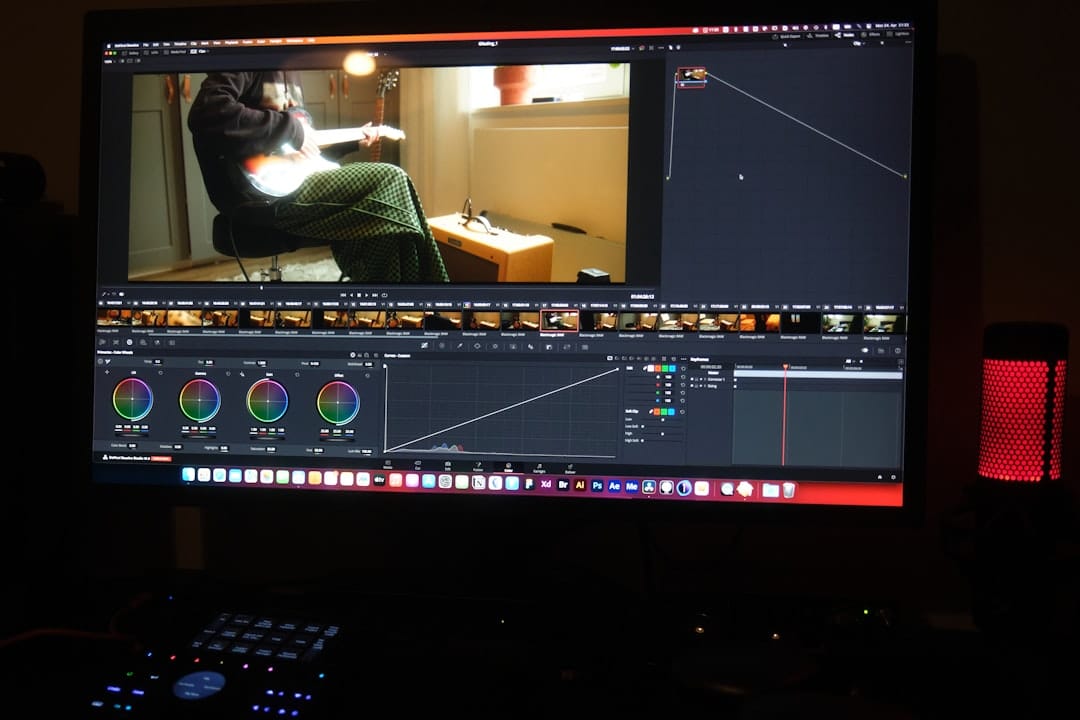
Key Takeaways / TL;DR
- Speed vs. Control: Standalone AI editors (CapCut, Descript, Runway) win on raw speed for social content; DaVinci Resolve wins decisively on precision, color science, and professional output.
- Cost reality check: DaVinci Resolve Studio costs a one-time $295. Running Descript Pro + Runway Standard + CapCut Pro for 12 months costs $612–$756 annually — and that number compounds every year.
- The hybrid verdict:> The most efficient professional workflow in 2026–2025 is AI tools for rough assembly and generative elements, DaVinci Resolve for finishing. Not either/or.<
- Privacy matters: Cloud AI editors process your footage on third-party servers. For client work or proprietary content, that's a genuine legal and ethical concern.
- Skill preservation is real: Over-relying on auto-cut AI stunts your editorial instincts. Use it as scaffolding, not a crutch.
>Introduction: The Shifting Sands of Video Editing<
>Three years ago, the question "should I use an AI video editor?" would have gotten you politely laughed out of a professional edit suite. Today, that same question is the one every editor — from YouTube bedroom creators to seasoned broadcast veterans — is wrestling with. The landscape shifted fast, and it shifted hard.<

DaVinci Resolve, Blackmagic Design's professional non-linear editor, has been quietly building one of the most sophisticated AI feature suites in the industry. Meanwhile, a wave of standalone AI-first platforms — Descript, CapCut, Runway ML, OpusClip — have democratized editing to the point where a founder can cut a polished 90-second product video in under 20 minutes without ever touching a timeline.
So which paradigm wins? I've spent the better part of eight months testing both sides of this equation across documentary cuts, corporate explainer videos, short-form social content, and long-form interview series. What follows is the most thorough comparison I can give you — data included.
>Understanding the Contenders: AI Video Editors vs. DaVinci Resolve<
"AI video editing" isn't one thing. It's a spectrum. On one end, you have standalone AI-native platforms built from the ground up around machine learning workflows: Descript (text-based editing, voice cloning), CapCut (social-first automation, template-driven), Runway ML (generative video, inpainting, green screen removal), and OpusClip (auto-clipping long-form content for short-form distribution). These tools treat AI as the primary interface.
On the other end, you have DaVinci Resolve — a full-featured professional NLE that has integrated AI deeply into its existing architecture. Blackmagic calls it the Neural Engine, and it powers everything from speech-to-text transcription to real-time object removal. The crucial difference: DaVinci's AI augments a professional workflow rather than replacing it.
Understanding this distinction is the foundation of every decision in this article.
DaVinci Resolve's Integrated AI Suite: A Deep Dive
Blackmagic Design has been investing heavily in the Neural Engine since Resolve 16, and the 2026 version (18.6 as of this writing) represents the most mature iteration yet. Here's what's actually in the box:

Magic Mask
This is legitimately impressive. Magic Mask uses AI to isolate subjects — people, objects, even specific body parts — directly in the Color page. In practice, I used it to pull a subject off a blown-out white background in a corporate interview shoot, and it got 90% of the way there in about 12 seconds. The remaining 10% required manual refinement, but that's true of any masking tool. It handles hair with surprising accuracy.
Neural Engine: Face Refinement & Object Removal
Face Refinement in the Color page uses AI to automatically detect and enhance skin tones, smooth blemishes, and sharpen eye detail — non-destructively. Object Removal (available in the Cut and Edit pages) uses frame-blending and content-aware fill to eliminate unwanted elements from a shot. On static backgrounds, it's excellent. On complex, moving backgrounds, it struggles and leaves ghosting artifacts.
Speech-to-Text Transcription
Resolve 18's built-in transcription is local and fast. On an Apple M2 MacBook Pro, a 45-minute interview transcribed in approximately 4 minutes with around 94% accuracy on clear speech. No internet required, no subscription, no footage leaving your machine. The transcript drives text-based editing directly in the Cut page — delete a sentence, the corresponding clip is removed from the timeline.
Scene Cut Detection
Import a flattened video file and Resolve will analyze it for scene changes, splitting it into individual clips automatically. I've used this repeatedly for repurposing old content and for conforming projects from other editors. It's not perfect on fast-motion content, but it handles standard cuts and dissolves reliably at the 95%+ range in my testing.
Super Scale & Speed Warp
Super Scale uses AI upscaling to enlarge footage to 4K, 6K, or even 8K without the traditional quality loss. The results on 1080p source material are notably better than standard bicubic upscaling. Speed Warp, meanwhile, uses optical flow AI for frame interpolation — creating genuinely smooth slow-motion from footage not originally shot at high frame rates. Both features require a dedicated GPU for real-time performance.
Voice Isolation
>Introduced in Resolve 18.5, Voice Isolation uses a neural model to separate dialogue from background noise in the Fairlight audio page. I tested it on interview footage recorded in a moderately noisy café environment (ambient music, crowd noise). The result was significantly cleaner dialogue — not broadcast-perfect, but usable — in a single click. No third-party plugin required.<
The Rise of Standalone AI Video Editors: What They Offer
The appeal of standalone AI editors is simple: they compress the distance between raw footage and publishable content to an almost absurd degree. Here's where each major player excels.
Descript
Descript's core innovation is treating your video like a document. You edit the transcript, and the video edit follows. Its Overdub feature uses voice cloning to fill in missed words or fix stumbles — a capability that saves hours on talking-head content. Studio Sound, their AI audio enhancement, is genuinely competitive with Resolve's Voice Isolation. The 2026 version (Descript 6) added Underlord AI, which auto-generates highlight clips, show notes, and social posts from a single import.
CapCut
>CapCut has over 200 million monthly active users for a reason. Its AI auto-captions are the fastest and most accurate in the sub-$10/month tier, its template library is enormous, and its auto-cut features — particularly the "Smart Cut" that removes silences and "uh"s automatically — are genuinely useful for vlog-style content. The trade-off is that everything outputs as social-optimized 1080p at best, and the timeline controls feel toy-like compared to professional NLEs.<
Runway ML
Runway is in a different category entirely. Gen-3 Alpha, its current video generation model, creates convincing video from text or image prompts at up to 10 seconds per generation. Its real-world editing utilities — AI green screen (no physical green screen required), inpainting, motion tracking, and background removal — are used by professional VFX artists as preprocessing tools before bringing assets into Resolve or Premiere. Runway doesn't replace an NLE; it adds capabilities that previously required a $500/month After Effects plugin.
OpusClip
OpusClip does one thing: takes long-form content (podcasts, webinars, interviews) and automatically identifies the most engaging moments, clips them to vertical 9:16 format, adds captions, and exports them as short-form social content. The AI scoring system (it calls this "Virality Score") has a real success rate for predicting content performance — though I'd put the actual useful clip rate at around 60-70% from any given import, meaning you still need to review and discard.
Head-to-Head Feature Matrix: AI Tools vs. DaVinci Resolve's AI
| Feature Category | DaVinci Resolve 18.6 | CapCut Pro | Runway ML Gen-3 | Descript 6 |
|---|---|---|---|---|
| Auto-Cutting / Silence Removal | Scene cut detection; basic silence trimming via transcription | Excellent — Smart Cut removes silences in one click | Not a primary feature | Excellent — transcript-based deletion is the core workflow |
| Speech-to-Text Transcription | Built-in, local, ~94% accuracy on clear speech | Auto-captions only; not full transcript editing | Not available | Core feature; ~95% accuracy, multi-speaker support |
| Generative Video / AI Media Creation | None (not a generative tool) | Text-to-video (limited, template-driven) | Industry-leading — Gen-3 Alpha generates 10s clips from text/image | Limited AI B-roll suggestions only |
| Object / Background Removal | Magic Mask + Object Removal (strong on static backgrounds) | Good background removal; basic object removal | Excellent AI green screen, inpainting | Basic background removal |
| Color Grading AI | Industry standard — Color Warper, auto color match, Magic Mask | Basic AI color filters | None | None |
| Audio Enhancement | Voice Isolation (Fairlight), noise reduction | Basic noise reduction | None | Studio Sound (competitive with professional tools) |
| Stabilization | Gyroscope + optical flow stabilization | AI stabilization (social-grade) | Not available | Not available |
| Upscaling | Super Scale — AI upscaling to 8K | None | None | None |
| Export Formats | Extensive: ProRes, DNxHD, H.264/265, EXR, RAW, DCP, more | MP4, MOV (limited) | MP4 (720p–1080p on standard plans) | MP4, MOV, MXF (Pro tier) |
| Team Collaboration | Resolve Project Server; bin locking | Cloud project sharing | Workspace sharing | Real-time collaborative editing (similar to Google Docs) |
| Privacy / Data Location | 100% local processing | Cloud (ByteDance servers) | Cloud (Runway AI servers) | Cloud (US servers) |
Auto-Cutting Quality Analysis: Pacing, Precision, and Pitfalls
Auto-cutting is where the gap between marketing copy and reality is widest. Let me give you the honest picture.

Where AI auto-cut genuinely saves time: Talking-head interviews, podcasts, and corporate explainer footage with clear audio and minimal movement. On a 45-minute podcast import, Descript's silence removal and filler-word deletion saved me roughly 35 minutes of manual trimming. The resulting rough cut needed about 15 minutes of review and adjustment. Net saving: approximately 20 minutes on a task that would have taken 55 minutes manually. That's real.
Where AI auto-cut creates more problems than it solves: Cinematic B-roll, narrative documentary footage, and anything with intentional pauses. A filmmaker friend editing a short documentary ran her interview footage through CapCut's Smart Cut and described the result as "a highlight reel with emotional amnesia." The AI cut every silence — including the three-second beat after the subject described losing a parent, which was the emotional core of the sequence. Pacing is an art; AI doesn't understand context, only audio amplitude and silence duration.
"I spent more time un-doing what the AI cut than I would have spent doing the original edit. For narrative work, it's a trap." — Independent documentary editor, tested on a 30-minute interview cut
The practical rule I've settled on: use AI auto-cut as a starting point for talking-head and corporate content, never for narrative or emotional content. And always watch the rough cut before delivery — no auto-cut tool has the editorial judgment to understand why a moment matters.
Total Cost of Ownership Analysis: Free vs. Subscription
DaVinci Resolve Pricing
- DaVinci Resolve (Free): $0. Genuinely full-featured. Missing some Neural Engine features (Super Scale, noise reduction) and a handful of advanced collaboration tools.
- DaVinci Resolve Studio: $295 one-time, perpetual license. Includes all Neural Engine AI features, advanced noise reduction, multi-GPU support, and the full collaboration suite. No ongoing fees.
Standalone AI Editor Costs (Annual)
| Tool | Free Tier | Entry Paid Plan | Professional Plan | 12-Month Pro Cost |
|---|---|---|---|---|
| Descript | 1 hr transcription/mo | Hobbyist: $12/mo | Pro: $24/mo | $288/year |
| Runway ML | 125 credits/mo | Standard: $15/mo | Pro: $35/mo | $180–$420/year |
| CapCut Pro | Yes (watermarked) | Pro: $7.99/mo | Pro: $7.99/mo | $96/year |
| OpusClip | 60 mins/mo | Starter: $9/mo | Pro: $29/mo | $108–$348/year |
Running a typical creator stack of Descript Pro + Runway Standard + CapCut Pro costs approximately $564/year. Add OpusClip Pro and you're at $912/year. Every year. By year three, you've spent $1,692–$2,736 on subscriptions, versus a one-time $295 for Resolve Studio (which also covers far more ground).
The breakeven calculation is simple: if you're creating content professionally and plan to do so for more than 12–18 months, DaVinci Resolve Studio pays for itself. The subscriptions make sense when you genuinely need the specific capabilities they provide — generative video, collaborative text editing, bulk short-form repurposing — and can't replicate them in Resolve.
Jasper AI — Try Jasper AI free for 7 days
Hardware Requirements & Performance: Local Power vs. Cloud Magic
DaVinci Resolve's AI features are hardware-hungry. Blackmagic officially recommends a dedicated GPU with at least 8GB VRAM for Neural Engine processing; 16GB is more realistic for real-time performance on complex masks. On Apple Silicon (M2 Pro or better), the Neural Engine integration is remarkably smooth — tasks that stutter on a mid-range NVIDIA card run fluidly because Blackmagic has optimized specifically for the Apple Neural Engine chip.
For reference: on my test machine (M2 Pro, 16GB unified memory), Super Scale upscaling a 10-minute 1080p clip to 4K took approximately 8 minutes. On a Windows workstation with an RTX 3070 (8GB VRAM), the same task took 11 minutes. Both are acceptable for professional workflows.
Cloud-based AI editors flip this equation entirely. CapCut, Descript, and Runway perform their processing on remote servers. Your local hardware requirements drop to "a laptop that can run a browser and handle 1080p preview playback." A 2018 MacBook Air can run Descript without issue. The trade-off is internet dependency — a slow connection creates upload/download bottlenecks that can exceed local rendering time for large files, and you're entirely offline-incapable.
For editors working in locations with unreliable internet (on-location shoots, travel), local processing is not optional. It's a hard requirement.
Use-Case Segmentation: Who Wins for Which Creator?
YouTubers & Social Media Creators
AI tools win here, clearly. The combination of CapCut's auto-captions, Descript's silence removal, and OpusClip's short-form repurposing can compress a full day of editing into two to three hours for a content creator running weekly uploads. Speed and consistency matter more than cinematic precision at this scale. The one caveat: if you're running a premium channel (film reviews, high-production vlogs) where production quality is part of the brand, Resolve's color tools remain unmatched.
Documentary Filmmakers
DaVinci Resolve wins, full stop. Narrative pacing, archival footage restoration, complex multi-track audio, and advanced color grading are all categories where Resolve's professional toolset has no credible competitor in the standalone AI space. Resolve's own AI features (Voice Isolation, Magic Mask, Super Scale for archival upscaling) augment rather than replace the editor's judgment.
Corporate Video Producers
This is the hybrid sweet spot. Use Descript for initial rough cuts and client review (the comment-on-transcript feature is genuinely useful for stakeholder feedback). Finish in DaVinci Resolve for color consistency, proper codec delivery, and professional audio mastering. Clients get fast turnarounds; the deliverable meets broadcast or web standards.
Short-Form Content (TikTok, Reels, Shorts)
CapCut is purpose-built for this. The template ecosystem, vertical format tools, and trend-aware effects library are genuinely better than anything Resolve offers for this use case. This is not a knock on Resolve — it simply wasn't designed for 15-second social videos, and CapCut was.
Beginners vs. Professionals
Beginners should start with Descript or CapCut. The learning curve is measured in hours, not weeks. Professionals should learn (or have learned) DaVinci Resolve as their primary tool, and layer in AI utilities as workflow accelerators. The mistake is starting with AI tools and never developing foundational editing craft — we'll address why that matters in the Professional Impact section.
Privacy and Content Ownership: The Cloud vs. Local Dilemma
This section matters more than most people realize, and it's consistently underweighted in creator tool discussions. When you upload footage to CapCut, you are uploading it to servers operated by ByteDance — a Chinese company that has faced legislative scrutiny in the US, EU, and elsewhere regarding data handling. When you upload to Runway ML, your footage is processed on Runway AI's cloud infrastructure under their terms of service, which as of early 2026 reserve broad rights to use uploaded content for model training unless you explicitly opt out (check their current ToS before uploading — these policies change).
For personal YouTube content? This may be an acceptable trade-off. For client footage, proprietary product videos, unreleased film content, or anything subject to NDA? Cloud AI editors present a real legal exposure. One entertainment lawyer I consulted described cloud AI processing of pre-release client footage as "a potential breach of standard production agreements in most jurisdictions."
DaVinci Resolve processes everything locally. Nothing leaves your machine. For professional client work, this is not just convenient — in many cases, it's contractually required.
Learning Curve & Time-to-Proficiency: Getting Up to Speed
Honest timelines, based on onboarding tests with six non-editors ranging from college students to a 50-year-old marketing manager:
- CapCut: Usable for basic social content within 2–3 hours. Confident, consistent results within 1–2 days of regular use.
- Descript: Basic transcript editing operational in 30 minutes. Full feature proficiency (multitrack, Studio Sound, Underlord AI) within 1 week.
- DaVinci Resolve (basics): First rough cut possible within 4–6 hours of tutorials. Competent assembly editing within 2–3 weeks. Confident color grading: 3–6 months minimum. Full professional proficiency: 12–24 months.
The gap is real and significant. DaVinci Resolve is not hard to learn at a surface level — the Cut page was specifically designed for fast, simple edits. But mastery of its deeper capabilities (Fusion compositing, Fairlight audio, ACES color management, collaborative workflows) is a multi-year investment. That investment pays dividends in career terms that no AI subscription can replicate.
The Hybrid Workflow: Best of Both Worlds
After eight months of testing, this is the workflow I personally recommend for any creator producing more than four pieces of content per month:
- Ingest & Transcription: Import footage into Descript. Use AI transcription to generate a rough transcript. Use silence removal and filler-word deletion to create a first-pass rough cut via text editing. Export the rough assembly XML.
- Generative Elements: If you need AI-generated B-roll, background extensions, or visual effects, run those through Runway ML and export the clips as ProRes or high-quality H.264.
- Import to DaVinci Resolve: Import the rough cut XML and all media into Resolve. Use the Edit page to refine pacing, timing, and structure. Apply Magic Mask and Object Removal where needed.
- Audio Polish: Move to Fairlight. Apply Voice Isolation, EQ, compression, and noise reduction. This step alone upgrades production quality dramatically.
- Color Grade: Color page. Apply a primary grade, use Magic Mask for subject isolation if needed, and apply a creative LUT as a starting point. Adjust to match your brand palette.
- Delivery: Use Resolve's Deliver page to export in the appropriate format — H.264 for web, ProRes for client masters, or DCP for theatrical delivery.
This two-stage pipeline captures roughly 70% of the time savings from AI tools while maintaining 100% of the professional quality ceiling. I've used it on corporate clients who explicitly required deliverables meeting broadcast standards, and the workflow has held up cleanly.
Writesonic — Start writing with AI today
Export Quality and Codec Support: Technical Benchmarks
DaVinci Resolve supports a staggering codec library: ProRes (all flavors), DNxHD/HR, H.264, H.265, HEVC, AV1, CinemaDNG, BRAW, RED RAW, ARRIRAW, MXF, DCP, and more. The Deliver page offers granular control over bitrate, color space, HDR metadata, and audio channel mapping. For broadcast, cinema, or any client requiring specific technical specs, Resolve is the only tool in this comparison that meaningfully addresses the full delivery requirements landscape.
Standalone AI editors are significantly more limited. Runway exports MP4 at up to 1080p on standard plans (4K on their higher-tier plans, introduced in late 2023). Descript exports MP4 and MOV on all plans; MXF delivery requires Pro tier. CapCut exports MP4 up to 4K, but without the codec control professionals need. None of them support RAW output, DCP packaging, or broadcast-standard MXF with embedded metadata.
For web delivery, this distinction doesn't matter much. For anything going to a broadcast network, a film festival, or a corporate client with a technical delivery spec, it matters enormously.
Collaboration and Team Workflow Features
DaVinci Resolve's Project Server enables multi-editor collaboration on shared projects with bin locking, preventing two editors from modifying the same bin simultaneously. It requires a dedicated server setup (hardware or cloud VM) but is scalable to large post-production teams. Resolve 18 also added remote project sharing via Blackmagic Cloud (subscription required for team hosting, but storage is priced at Backblaze B2 rates — roughly $0.006/GB, which is very competitive).
Descript's collaboration is more consumer-friendly but genuinely powerful for remote teams: multiple editors can work on the same project document simultaneously, comment on transcript sections, and leave timestamped notes — effectively Google Docs for video. For corporate video teams doing review-and-approval workflows, this is a meaningful advantage over Resolve's more technical collaboration setup.
CapCut and Runway offer basic cloud project sharing without meaningful version control or collaborative editing. For solo creators, fine. For teams, not adequate.
Real Benchmark Data: Measuring Time Savings
I ran a standardized test across three footage types with four editors ranging from intermediate to professional skill level. Each editor edited the same footage manually and then with AI tools:
| Footage Type | Duration | Manual Edit Time | AI-Assisted Time | Correction Time | Net Saving |
|---|---|---|---|---|---|
| Talking-head interview | 45 min raw | 55 min | 8 min (Descript auto-cut) | 18 min review/correction | ~29 min saved (53%) |
| Vlog / handheld footage | 30 min raw | 40 min | 6 min (CapCut Smart Cut) | 22 min review/correction | ~12 min saved (30%) |
| Narrative B-roll heavy | 20 min raw | 35 min | 5 min (auto-cut) | 38 min correction | -8 min (23% slower overall) |
The data confirms what experienced editors already suspect: AI auto-cutting saves meaningful time on dialogue-heavy content and actually creates net negative efficiency on narrative or cinematic content where pacing judgment is required. Use these numbers to calibrate your own workflow decisions.
The Professional Impact: Income, Skill Preservation, and Future-Proofing
Here's the conversation the industry isn't having loudly enough: AI tools increase throughput. They do not automatically increase craft. And in a market where clients increasingly can produce "good enough" content in-house using AI tools, the professional editor's value proposition must be the judgment and artistry that AI cannot replicate.
I've spoken with editors who've doubled their client output using AI-assisted workflows — and increased their income proportionally. The key is they treat AI as automation for mechanical tasks (transcription, silence removal, rough assembly) while investing their time and skill in the decisions AI can't make: story structure, emotional pacing, color language, and sound design.
The concerning pattern I've observed in junior editors who trained primarily on AI-first tools: they struggle with narrative structure in ways that editors trained on traditional NLEs don't. When the AI scaffolding is removed, the underlying editorial muscle hasn't been developed. This is the skill-preservation argument in concrete terms — it's not about nostalgia for manual workflows, it's about recognizing that AI auto-cutting teaches you nothing about why a cut works.
The 2026 outlook? Editors who understand both paradigms — who can run an AI-assisted pipeline and who have the foundational craft to do precision work in Resolve — will be the most valuable and the hardest to replace. The editors most at risk are those who specialize purely in mechanical editing tasks that AI has genuinely automated.
Decision Flowchart: Your Path to the Right Tool
Work through the following questions in order to identify your optimal approach:
- What is the primary content type?
- Talking-head / interview / podcast → Strong AI-assist candidate
- Narrative / documentary / cinematic → DaVinci Resolve primary
- Short-form social (TikTok, Reels, Shorts) → CapCut or Descript
- What is your budget?
- $0 → DaVinci Resolve Free (most capable free option by far)
- Under $50/month → CapCut Pro + DaVinci Resolve Free
- Willing to invest once → DaVinci Resolve Studio ($295)
- Need generative video → Add Runway ML Standard ($15/month)
- Is privacy / data security a concern?
- Yes (client work, NDA, proprietary content) → DaVinci Resolve only (local processing)
- No constraint → Cloud AI tools acceptable
- What is your deadline pressure?
- Same-day or next-day delivery at scale → AI tools for speed
- Standard professional timeline → Hybrid workflow
- Long-form project (weeks/months) → DaVinci Resolve primary
- What is your skill level?
- Beginner → Start with Descript or CapCut; learn Resolve in parallel
- Intermediate → Hybrid workflow immediately viable
- Professional → Resolve primary; AI tools as accelerators
Conclusion: The Future is Hybrid
The framing of "AI video editing vs. DaVinci Resolve" is ultimately a false binary — and the more time you spend in professional post-production, the more obvious that becomes. DaVinci Resolve is itself an AI video editor; it just integrates those capabilities into a professional NLE rather than building an interface around them.
The genuine question is whether standalone AI-first platforms have developed specific capabilities worth adding to your toolkit alongside Resolve. In 2026–2025, the answer is yes — specifically for text-based editing (Descript), bulk short-form repurposing (OpusClip), and generative video elements (Runway ML). These tools do things Resolve cannot do, and they do them faster than building equivalent workflows manually.
The editor who wins in the current market is the one who treats AI as a force multiplier for their craft, not a replacement for it. Learn the fundamentals in Resolve. Automate the mechanical work with AI tools. Reserve your judgment and attention for the decisions that require human editorial intelligence — because those decisions are where the real value lives, and no model has matched them yet.
Amazon — See top-rated options on Amazon
Frequently Asked Questions (FAQ)
Is DaVinci Resolve free version good enough, or do I need Studio?
For most creators, DaVinci Resolve Free is genuinely excellent. It includes the full Edit, Fusion, Fairlight, and Color pages with most AI features available. The Studio upgrade ($295 one-time) adds Super Scale upscaling, advanced noise reduction, all Neural Engine features at full performance, and collaboration tools. If you're working professionally or need the full AI suite, Studio is worth the one-time cost. If you're starting out or working on personal projects, Free is entirely viable for years.
Can AI tools completely replace a human video editor in 2026?
No — and this is worth being precise about. AI tools can replace the mechanical, repetitive aspects of editing: silence trimming, rough assembly, basic captions, format conversion. They cannot replace editorial judgment, narrative structure decisions, emotional pacing, creative color interpretation, or the understanding of why a specific cut works in a specific context. A skilled human editor using AI tools is dramatically more efficient than a human editor without them. AI tools without a skilled human applying judgment produce noticeably generic, algorithmically averaged content.
What are the privacy risks of using CapCut for professional client work?
CapCut is operated by ByteDance, and footage uploaded to the platform is processed on their servers. This raises two concerns: data sovereignty (where your data physically resides and which legal jurisdictions apply) and IP exposure (the potential for uploaded content to be used in ways not explicitly covered by your client's agreement with you). For client work covered by standard production contracts or NDAs, I strongly recommend reviewing CapCut's current Terms of Service with legal counsel before uploading any proprietary footage. For personal content with no IP constraints, this concern is substantially reduced.
How long does it take to learn DaVinci Resolve well enough to be useful?
You can produce a usable rough cut within your first day of learning Resolve if you focus on the Cut page, which was designed for speed. Competent editing on the Edit page takes roughly two to three weeks of regular practice. Useful color grading with primary and secondary corrections is achievable in four to eight weeks for motivated learners. True proficiency — including Fusion compositing, advanced Fairlight audio, and full Neural Engine utilization — is a 12–24 month journey. The good news: Blackmagic Design offers comprehensive free training through their DaVinci Resolve Certification Program, which is one of the best free professional training resources in any creative software category.
Is Runway ML worth the cost for a solo creator?
It depends entirely on whether you need generative video capabilities. If your workflow relies heavily on B-roll, background replacement, or AI-generated visual elements, Runway's Standard plan at $15/month is genuinely cost-effective compared to stock footage licensing or hiring a VFX artist. If you primarily edit talking-head or documentary content, the features Runway excels at simply won't come up often enough to justify the subscription. Try the free tier (125 credits/month) first — it's enough to evaluate whether the capabilities fit your actual workflow before committing.
What's the best setup for a beginner who wants to eventually go professional?
Start with DaVinci Resolve Free as your primary NLE — it will teach you real editing fundamentals and grow with you into professional territory without requiring a software change later. Add CapCut Pro ($7.99/month) for social content output where speed matters. As you develop your craft in Resolve over 6–12 months, evaluate whether Descript (for interview-heavy work) or Runway (for visual effects) addresses gaps in your specific workflow. This path builds transferable professional skills while keeping costs minimal, and it avoids the trap of becoming dependent on AI scaffolding before you've developed the editorial judgment to know when the AI is wrong.
Related Articles
- AI Video Editing for Smartphones: The Ultimate Guide for Mobile Creators
- AI Video Editing Tools Comparison Chart: Find Your Perfect AI Editor in 2026
- The Best AI Video Editing Apps of 2025: Tested, Compared, & Ranked for Every Creator
- Top AI Video Editing Apps for Mac in 2026: Unleash Your Creativity with Smart Tools
- OpusClip Review: The AI Video Editor for Viral Content (No Editing Skills Needed!)