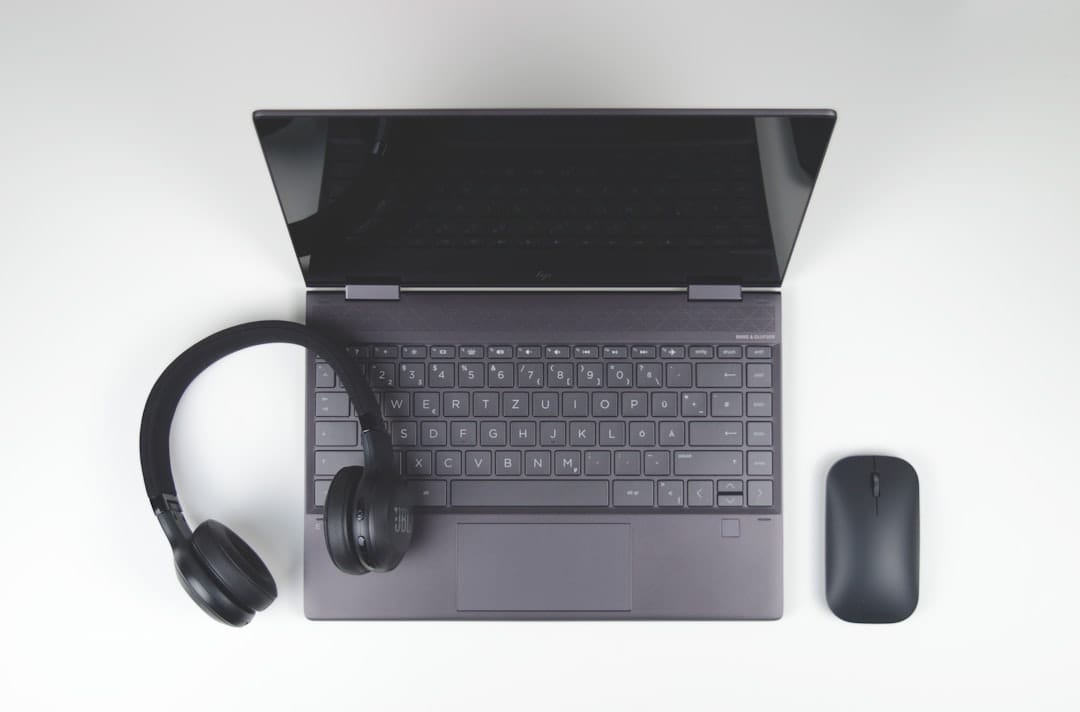
Boost Efficiency: Wireless Ergonomic Keyboard & Mouse for Home Office
Optimize your home office for peak productivity and comfort with a wireless ergonomic keyboard and mouse combo. Discover how these tools reduce strain and automate workflows.
The Silent Drain on Productivity: Unseen Costs of Suboptimal Home Office Setups
>As an operations leader, you’re constantly evaluating workflows, identifying bottlenecks, and seeking efficiencies. We often focus on software, network infrastructure, or team processes. Yet, a significant, often overlooked drain on productivity can be found right at the user's desk: the humble keyboard and mouse. A suboptimal home office setup isn’t just about minor discomfort; it’s a silent, insidious force eating away at your team’s output and your bottom line.<
Think of it as a manual workflow problem in a digital age. Every awkward wrist angle, every strained finger movement, every extra millisecond spent correcting a typo or repositioning a hand isn't just a personal annoyance. It compounds. Over a full workday, across an entire remote team, these micro-inefficiencies translate into tangible operational costs:
Increased Error Rates: Discomfort leads to distraction. Distraction leads to mistakes. A study published in the Journal of Occupational and Environmental Medicine highlighted how poor ergonomics correlate with higher error rates in data entry and complex task completion.
Reduced Focus and Cognitive Load: When your team members are constantly aware of discomfort – a stiff wrist, a tingling finger – a portion of their cognitive capacity is diverted from the task at hand. This "background noise" reduces deep work potential and extends task completion times.
Prolonged Task Completion: Every click, every keystroke, every navigation effort is slightly slower, slightly more cumbersome. Multiply this by thousands of actions per day, and you're looking at hours of lost productivity per employee per week. It’s like running a high-speed assembly line with sticky gears.
Potential Long-Term Health Issues and Absenteeism: This is where the hidden costs become alarmingly visible. Repetitive Strain Injuries (RSIs) like Carpal Tunnel Syndrome, cubital tunnel syndrome, and tendonitis are not just buzzwords; they are real, debilitating conditions that can lead to medical leave, reduced performance even upon return, and high workers' compensation claims. The Occupational Safety and Health Administration (OSHA) estimates that RSIs account for a significant portion of all workplace injuries, with recovery often taking weeks or even months. For remote teams, managing these issues adds another layer of complexity.
These aren't hypothetical scenarios. I've personally seen how a team member struggling with wrist pain takes twice as long to complete a spreadsheet analysis, or how another's constant repositioning of their traditional mouse breaks their concentration during a critical coding session. It’s a physical bottleneck slowing down digital processes, and it demands a strategic solution.
Beyond Comfort: How Ergonomic Peripherals Drive Operational Efficiency
>When we talk about wireless ergonomic keyboard and mouse combos, we're not just discussing "comfort" in a soft, subjective sense. We're talking about tangible, measurable improvements in operational efficiency. These tools are, in essence, physical workflow automation devices for the human interface. They streamline the most fundamental interactions your team has with their digital environment.<
Let's consider the direct impact on efficiency metrics:
Reduced Keystroke Errors: Ergonomic designs, particularly those with split keypads and natural key layouts, can significantly reduce the awkward angles that lead to mistyping. This means less time spent backspacing and correcting, speeding up data entry, email composition, and document creation. Imagine a 5% reduction in typos across your customer support team – that’s faster response times and clearer communication.
Speeding Up Navigation: An ergonomic mouse, whether vertical or traditional with an optimized shape, allows for more precise and less effortful cursor control. This translates to faster navigation through complex software interfaces, quicker selection of menu items, and more efficient drag-and-drop operations. For a project manager juggling multiple applications and dashboards, this isn't just a convenience; it's a critical time-saver.
Minimizing Micro-Breaks Due to Discomfort: Every time a team member shakes out their hand, stretches their wrist, or subtly shifts in their chair due to discomfort, it's a micro-break that disrupts their flow state. Ergonomic peripherals minimize these interruptions, allowing for longer periods of focused work. This isn't about eliminating breaks entirely – proper breaks are crucial – but about eliminating *unwanted* breaks caused by physical strain.
Improving Overall User Experience: A comfortable user is a more engaged and productive user. When the physical interaction with technology is seamless and pain-free, mental energy can be fully directed towards the task at hand. This improves morale, reduces frustration, and fosters a more positive remote work environment.
The "wireless" aspect further amplifies these benefits. Cable clutter, while seemingly minor, is a real impediment to a streamlined workspace. Tangled wires create visual noise, restrict peripheral placement, and can even lead to accidental disconnections. A wireless setup frees up desk space, allows for optimal positioning of devices (critical for ergonomics), and contributes to a clean, organized environment that fosters focus. It's about removing another layer of friction from the operational process. Think of it as digitizing the physical space – much like how cloud storage streamlines file management, wireless peripherals streamline desk management.
Anatomy of Efficiency: Key Features of a High-Performing Ergonomic Combo
Understanding the specific features that contribute to efficiency is key to making an informed investment. It's not just about a fancy shape; it's about engineering that reduces effort and accelerates execution.
Split Keypads & Tenting: A split keyboard separates the keys into two halves, allowing your hands to rest at a more natural, shoulder-width distance. Tenting raises the middle of the keyboard, reducing pronation (the inward rotation of your forearms) and wrist extension. This directly reduces strain on wrists and shoulders, allowing for longer, more comfortable typing sessions. For data entry specialists or developers, this means fewer errors and sustained performance.
Integrated Wrist Rests: A well-designed, often padded, wrist rest provides crucial support, keeping your wrists straight and elevated. This prevents pressure on the carpal tunnel and reduces the likelihood of nerve compression. It's a foundational element for preventing RSIs.
Programmable Keys & Macros: This is where the "automation" truly shines. High-end ergonomic keyboards often feature dedicated programmable keys or allow remapping of standard keys. You can assign complex sequences of commands (macros) to a single key press. Imagine an operations manager needing to open five specific applications, navigate to a daily report, and copy data – all with one button. This significantly reduces repetitive actions and speeds up routine tasks. I've programmed my own keyboard to launch my CRM, project management tool, and email client with a single tap – a huge time saver.
Adjustable DPI (Dots Per Inch) on Mice: DPI determines the sensitivity of your mouse cursor. A higher DPI means the cursor moves further with less physical movement of the mouse. Adjustable DPI settings allow users to fine-tune sensitivity based on task (e.g., lower DPI for precise graphic design, higher DPI for quick navigation across multiple monitors). This minimizes unnecessary hand and arm movements, reducing fatigue.
Data analysis, coding, graphic design, extensive navigation.
A vertical mouse, by maintaining a more natural "handshake" grip, significantly reduces forearm pronation, a major contributor to wrist and arm pain. I switched to a vertical mouse about three years ago, and the difference in end-of-day wrist fatigue was immediate and profound. It felt awkward for about a day, but the efficiency gains in comfort and sustained focus far outweighed that brief adaptation period.
Customizable Buttons: Beyond programmable keys, many ergonomic mice offer extra buttons that can be assigned to specific functions (e.g., back/forward in browsers, copy/paste, launching applications). This reduces the need to reach for the keyboard or navigate through menus, saving precious seconds on common actions.
Implementing a Productivity Upgrade: Choosing and Integrating Your Wireless Ergonomic Setup
Selecting and integrating the right wireless ergonomic keyboard and mouse combo is a strategic decision, not a casual purchase. Approach it with the same methodical rigor you apply to other operational improvements. Here's a step-by-step methodology:
Assessing Individual Needs: This is critical. A one-size-fits-all approach rarely works for ergonomics.
Hand Size: Smaller hands might struggle with oversized ergonomic mice or keyboards, while larger hands might cramp on compact models.
Preferred Typing Style: Do they "hunt and peck" or touch-type? Are they heavy typists or light? A split keyboard benefits touch-typists most.
Common Tasks: A data entry specialist will prioritize different features (e.g., numeric keypad, comfortable key travel) than a graphic designer (e.g., precise mouse, programmable buttons).
Existing Discomfort: If team members already report wrist, shoulder, or neck pain, specific ergonomic features (like tenting or a vertical mouse) become non-negotiable.
Researching Reputable Brands and Models:> Focus on brands known for their ergonomic research and quality construction. Some industry leaders include Logitech (e.g., MX Keys, Ergo K860, MX Master series), Microsoft (e.g., Sculpt Ergonomic Desktop), and Kensington (e.g., Pro Fit Ergo Vertical Mouse). Look for models with positive reviews from users in similar roles to your team.<
Understanding Connectivity Options:
Bluetooth: Offers a cleaner setup as it doesn't require a USB dongle. Most modern laptops and desktops have built-in Bluetooth. It's generally reliable, but can occasionally experience minor latency or interference, especially in crowded wireless environments. Security is generally good, utilizing standard encryption protocols.
2.4GHz Dongle (USB Receiver):> Provides a dedicated, often more stable and lower-latency connection. It's essentially plug-and-play. The downside is it occupies a USB port, and the dongle can be lost. For critical tasks requiring absolute minimal lag (e.g., high-speed data entry), a 2.4GHz connection can sometimes offer a slight edge. Both options are generally secure for typical office data, but always ensure your devices are from reputable manufacturers with up-to-date firmware.<
Setup and Customization: This is where you "automate" the physical interaction.
Driver Installation: Most modern peripherals are plug-and-play, but installing manufacturer-provided drivers unlocks advanced features and customization software.
Key Mapping & Macro Creation: Utilize the accompanying software to map programmable keys to frequently used shortcuts or create macros for multi-step tasks. For example, a macro to "Save, Close, and Open Next Document" can save dozens of clicks daily for a document reviewer.
DPI Adjustment: Encourage users to experiment with mouse DPI settings to find their optimal sensitivity for different tasks and monitor setups.
Post-Implementation Evaluation and Adjustment: Ergonomics is iterative. After deployment, encourage feedback. Are team members adapting well? Are they experiencing new discomforts? Be prepared to make minor adjustments to settings or even swap out models if a particular setup isn't working for an individual. A 30-day trial period can be very beneficial here.
Let's move beyond theory and look at concrete scenarios where a wireless ergonomic keyboard and mouse combo delivers measurable improvements in workflow automation and efficiency.
Data Entry Specialist: Reducing Error Rates & Increasing Input Speed
"Before switching to a split ergonomic keyboard, my wrists ached daily, and I'd average 3-5 critical typos per hour. After a week with the new setup, my error rate dropped by nearly 40%, and my net input speed increased by 15%. I wasn't just faster; I was more accurate and felt less drained at the end of the day." - Sarah J., Remote Data Entry Lead.
For a data entry role, precision and speed are paramount. A split, tented keyboard reduces the physical stress that leads to fatigue and mistakes. Programmable keys can automate common sequences like "Tab, Enter, Save" or open specific database fields, cutting down on repetitive keystrokes. The improved comfort allows for longer periods of sustained focus, directly translating to higher throughput and cleaner data.
Project Manager: Navigating Complex Software with Fewer Clicks and Less Strain
Project managers often live in a world of multiple tabs, applications (Jira, Asana, Slack, Outlook, Excel), and dashboards. A traditional mouse requires constant, tiny adjustments and wrist movements. A vertical ergonomic mouse, combined with programmable buttons, transforms this experience. Assign "next task," "previous project," or "open communication channel" to mouse buttons. The Logitech MX Master series, for instance, has a thumb wheel perfect for horizontal scrolling through Gantt charts or large spreadsheets, a feature I rely on daily.
I personally manage my team's sprint board, and with my MX Master 3, I've mapped the thumb buttons to "copy" and "paste." This saves me countless trips to the keyboard and keeps my focus on the visual board, significantly speeding up task management and updates.
Developer: Coding More Comfortably for Longer Periods
>Developers spend hours typing, often in intense, focused bursts. RSIs are a significant concern. An ergonomic keyboard with excellent key travel and a natural layout can extend their comfortable coding time. Furthermore, programmable keys can be invaluable for automating common code snippets, navigating IDEs, or triggering build commands. Imagine a developer assigning a complex Git command or a frequently used function call to a single key. This isn't just about comfort; it's about reducing the cognitive load of remembering and typing out repetitive commands, allowing more mental energy for problem-solving.<
Operations Lead: Efficiently Managing Multiple Applications and Dashboards
>As an operations leader, you're constantly monitoring, analyzing, and reacting. Switching between dashboards, communication platforms, and reporting tools is a daily routine. A wireless ergonomic combo, especially one with multi-device connectivity (like many Logitech MX series products that can pair with up to three devices), allows seamless transitions. Customizable mouse buttons can launch specific reports or filter data with a single click. This streamlines the "meta-work" of managing your operational tools, allowing you to focus on the insights, not the mechanics of getting to them. I use my Logitech MX Keys and MX Master 3 to effortlessly switch between my main desktop, my laptop, and even my iPad, which is incredibly efficient for managing tasks across different platforms.<
Beyond the Hardware: Maximizing Your Ergonomic Investment
While a premium wireless ergonomic keyboard and mouse combo is a significant step, its full potential is realized when integrated into a holistic ergonomic setup. Think of these as "process optimizations" that complement your "tool upgrade":
Proper Desk Height: Ensure your desk allows your arms to be at a 90-degree angle at the elbow when typing, with your feet flat on the floor. A standing desk with memory presets is an excellent investment, allowing for dynamic posture changes throughout the day.
Monitor Placement: Your monitor should be at arm's length, with the top of the screen at or slightly below eye level. This prevents neck strain and slouching. Consider a monitor arm for optimal adjustability.
Regular Micro-Breaks: Encourage (and model!) the practice of taking short breaks every 20-30 minutes. The 20-20-20 rule (every 20 minutes, look at something 20 feet away for 20 seconds) is excellent for eye strain.
Stretching Exercises: Simple wrist, hand, and shoulder stretches throughout the day can prevent stiffness and improve circulation. There are numerous free apps and online guides for office-friendly stretches.
These complementary practices amplify the benefits of your ergonomic hardware, creating a truly optimized and healthy remote workspace. It's about building a resilient and efficient operational ecosystem for your team.
Streamline Your Home Office: A Strategic Investment in Efficiency
>Ultimately, investing in a high-quality wireless ergonomic keyboard and mouse combo for your home office isn't just about providing comfort; it's a strategic investment in operational efficiency and the long-term health of your remote workforce. These aren't luxury items; they are essential tools for automating physical workflows, reducing hidden costs associated with discomfort and inefficiency, and empowering your team to perform at their best.<
By minimizing repetitive strain, increasing input accuracy, and speeding up navigation, these peripherals directly contribute to higher productivity, reduced absenteeism, and a more engaged remote team. It's about creating an environment where your team can focus on their core tasks, free from physical impediments. This leads to better outcomes, faster project completion, and a healthier bottom line. Make the strategic choice to upgrade your team's interface with their digital world.
Frequently Asked Questions About Wireless Ergonomic Combos
Are wireless peripherals secure for sensitive data?
Yes, reputable wireless ergonomic keyboards and mice typically use robust encryption (like AES 128-bit) for their signals, whether via Bluetooth or a 2.4GHz dongle. This makes interception extremely difficult. For highly sensitive environments, always ensure you're using devices from trusted brands and keeping their firmware updated. In my experience, the security risks are negligible for standard business operations when using enterprise-grade devices.
How often do I need to charge/replace batteries?
Battery life varies significantly by model and usage. Many modern wireless keyboards can last for months or even a year on a single set of AA/AAA batteries, or weeks to months on a rechargeable battery. Mice, especially those with advanced sensors, typically require charging every few weeks to a few months. Most rechargeable models offer quick charging and can often be used while plugged in, so it rarely interrupts workflow. My Logitech MX Master 3 mouse lasts about 70 days on a full charge, and my MX Keys keyboard lasts 10 days with backlighting on, or up to 5 months with backlighting off.
Is it difficult to adapt to an ergonomic layout?
There is an initial adaptation period, especially for split keyboards or vertical mice. Most users report feeling awkward for the first few days to a week. However, the vast majority find the transition worthwhile, with sustained comfort and efficiency benefits emerging after this initial phase. It's similar to learning a new software shortcut – a small upfront investment for long-term gain.
What's the difference between Bluetooth and a USB dongle?
Bluetooth connects directly to your computer's built-in Bluetooth receiver, requiring no additional hardware and freeing up a USB port. It's great for portability and multi-device pairing. A USB dongle (2.4GHz) provides a dedicated, often more stable and lower-latency connection, but occupies a USB port. Some high-end combos offer both options, allowing you to choose based on your specific needs and device compatibility.
Can I use an ergonomic combo with multiple devices?
Absolutely. Many advanced wireless ergonomic combos, particularly from brands like Logitech, offer multi-device connectivity. They often have dedicated buttons to switch between 2-3 paired devices (e.g., your desktop, laptop, and tablet) seamlessly. This is a huge productivity booster for anyone managing multiple machines.
Are they truly worth the investment for an operations lead?
From an operations perspective, yes, unequivocally. The initial cost of a quality wireless ergonomic combo is quickly offset by the reduction in hidden costs: fewer errors, faster task completion, increased employee focus, and a significant reduction in the risk of RSIs and associated absenteeism. It's an investment in your team's health, productivity, and ultimately, your operational efficiency. Consider it a preventative measure and a performance enhancer rolled into one.