Ergonomic Workstation Setup Checklist: Master Your Remote Office for Health & Productivity
Optimize your remote ergonomic workstation setup with our detailed checklist. Prevent pain, boost productivity, and create a healthy home office environment.
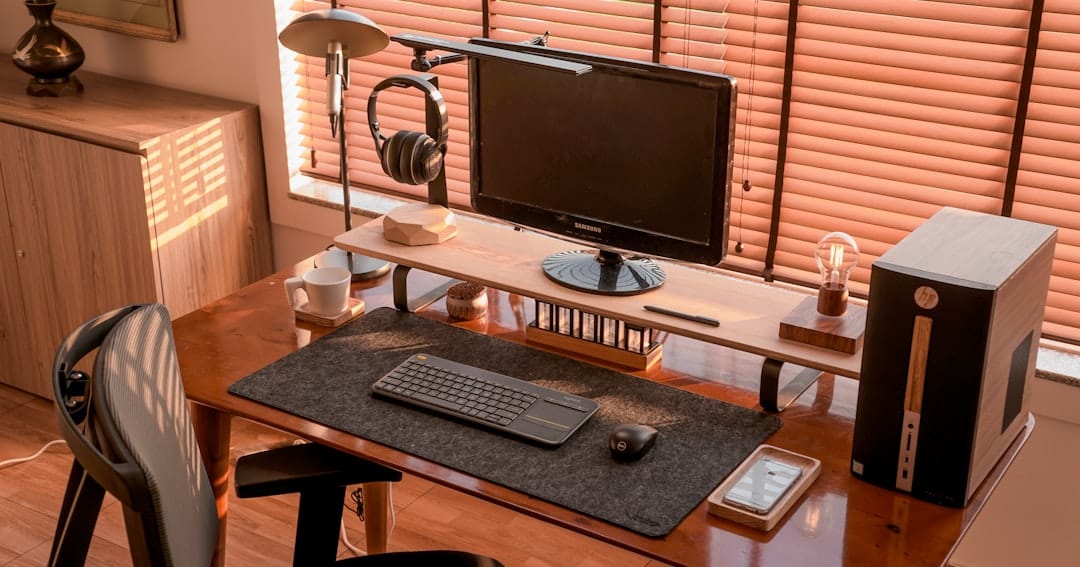
>Ergonomic Workstation Setup Checklist: Master Your Remote Office for Health & Productivity<
Key Takeaways: Your Ergonomic Workstation TL;DR
Working remotely offers incredible flexibility, but it also places the onus squarely on you to create a healthy work environment. An ergonomic workstation isn't a luxury; it's a necessity for long-term health and sustained productivity. Think of it as an ongoing conversation with your body, not a one-time setup. Small, consistent adjustments yield big dividends.
- Prioritize Posture: Your chair, monitor, keyboard, and mouse should all support a neutral, relaxed body position.
- Adjust Incrementally: Start with free or low-cost changes. You don't need to overhaul everything at once.
- Invest Smartly: When you do buy, choose tools that offer adjustability and genuinely support your body.
- Listen to Your Body: Pain is a signal. Don't ignore discomfort; it’s your cue to reassess and adjust.
- Movement is Medicine: Even the most perfect setup can't replace regular breaks and micro-movements.
Introduction: Why Your Remote Ergonomic Setup Matters More Than Ever
>The global shift to remote work, accelerated dramatically in recent years, has brought with it a host of new challenges, particularly concerning physical well-being. What started as a temporary measure for many has become the new normal, turning kitchen tables, spare bedrooms, and even closets into makeshift offices. While the freedom of working from home is undeniable, the hidden cost often manifests as nagging back pain, stiff necks, wrist discomfort, and persistent headaches – all hallmarks of a poorly designed workspace.<
This isn't just about comfort; it's about investing in your health, productivity, and ultimately, your career longevity. Ergonomics, the science of designing the workplace to fit the worker, is your shield against these common remote work ailments. Ignoring it can lead to more than just discomfort; it can lead to costly musculoskeletal injuries (MSIs).
And consider the data: The Bureau of Labor Statistics (BLS) consistently reports that MSIs account for a significant portion of all non-fatal occupational injuries and illnesses requiring days away from work. While precise numbers for remote workers are still emerging, OSHA's general duty clause still applies to employers ensuring a safe working environment, even at home. The average cost of a single MSI can range from thousands to tens of thousands of dollars in medical bills, lost productivity, and potential workers' compensation claims. For an individual, this translates to pain, reduced quality of life, and a significant drain on personal finances.
My own journey into remote work ergonomics began years ago when I started feeling a persistent ache in my right shoulder after long coding sessions. I quickly realized that my "comfortable" couch setup was anything but. That experience taught me that prioritizing an ergonomic setup isn't an indulgence; it's a strategic investment with a measurable return on investment (ROI) in terms of reduced pain, increased focus, and sustained energy throughout the workday.
The Ultimate Ergonomic Workstation Setup Checklist: A Tiered Approach
Creating an ergonomic workstation can feel overwhelming, especially if you're starting from scratch. That's why I've broken down this comprehensive checklist into a tiered approach: Minimum Viable, Standard, and Advanced. This allows you to tackle adjustments based on urgency, budget, and your current level of discomfort. Think of it as a self-audit tool, helping you identify immediate improvements and plan for future upgrades.
Go ahead and use this checklist to score your current setup. For each item, give yourself a point if you meet the criteria. The goal isn't perfection overnight, but continuous improvement. You might even print this out and use it as a quarterly scorecard to track your progress!
Tier 1: Minimum Viable Ergonomic Setup (Essential for Everyone)
These are the foundational adjustments, many of which are free or low-cost. Don't underestimate their impact – even small changes here can dramatically improve comfort and prevent strain.
Chair Positioning: The Foundation of Good Posture
Your chair is the anchor of your workstation. Getting it right is paramount, even if it's a basic dining chair.
- Seat Height: Adjust your chair so your feet are flat on the floor or on a footrest. Your knees should be at a 90-100 degree angle, slightly lower than your hips. This opens up your hip angle and reduces pressure on your lower back.
- Armrests: If your chair has them, adjust them so your elbows are supported at roughly a 90-degree angle, close to your body. Your shoulders should remain relaxed, not hunched. If they're too high or too low and non-adjustable, consider removing them or finding a different chair.
- Lumbar Support: Your lower back has a natural inward curve. Your chair should support this curve. If your chair lacks built-in lumbar support, a rolled towel, small pillow, or even a sweatshirt can be placed at the small of your back to mimic this support. Aim for gentle, consistent pressure.
Before: Slouching forward, feet dangling, shoulders hunched.
After: Feet flat, knees at 90 degrees, back supported, shoulders relaxed, forearms parallel to the floor.
I've personally used a rolled yoga mat for lumbar support for months when I was first starting out. It's not fancy, but it makes a world of difference.
Monitor Placement: Eye-Level and Just Right
Proper monitor placement prevents neck strain and eye fatigue.
- Eye-Level: The top one-third of your screen should be at eye level. This means you look slightly downward to view the entire screen, keeping your neck in a neutral position.
- Distance: Position your monitor roughly an arm's length away. A good rule of thumb is 1.5 to 2 times the diagonal screen size. For instance, a 24-inch monitor should be 36-48 inches away. This ensures you can see everything without straining your eyes or leaning forward.
- DIY Risers: If your monitor is too low, stack sturdy books, reams of paper, or even a small box underneath it. Just ensure it's stable and doesn't wobble.
Before: Monitor too low, forcing neck flexion and forward head posture.
After: Monitor raised, top third at eye level, head in a neutral position.
Keyboard & Mouse: Neutral Wrist, Happy Hands
These peripherals are often overlooked, but improper use can lead to wrist and hand issues like carpal tunnel syndrome.
- Neutral Wrist Position: Your wrists should be straight, not bent up, down, or to the side. Imagine a straight line from your elbow through your wrist to your fingertips.
- Keyboard Tilt: Many keyboards have feet that tilt them upwards. For ergonomic typing, a negative tilt (where the keyboard slopes away from you) or a flat keyboard is often better, especially if you have an external keyboard. This helps maintain a neutral wrist.
- Palm Rests: Use palm rests only for resting your hands during breaks, not while actively typing. Typing with your palms resting can put pressure on nerves and tendons.
- External Peripherals for Laptops: If you're using a laptop, you absolutely need an external keyboard and mouse. This allows you to raise the laptop screen to eye level without contorting your wrists or neck.
Before: Wrists bent upwards, resting on the desk edge, shoulders hunched over a laptop.
After: External keyboard and mouse, wrists straight, forearms parallel to the floor, shoulders relaxed.
Tier 2: Standard Ergonomic Setup (Smart Investments)
Once you've nailed the basics, these smart investments can significantly upgrade your comfort and productivity. These are typically the next steps once you realize remote work is here to stay.
>Ergonomic Chair Selection: Beyond the Basics<
A good ergonomic chair is perhaps the single most impactful investment you can make in your remote office. I learned this the hard way after a year on a glorified dining chair.
Look for chairs with:
- Extensive Adjustability: Seat height, seat depth, armrest height/width/pivot (2D, 3D, or 4D), lumbar support height/depth, backrest angle, and tilt tension.
- Dynamic Lumbar Support: Some chairs offer adjustable lumbar support that can be raised, lowered, and even deepened to perfectly match your spinal curve.
- Breathable Fabric: Mesh backs are popular for ventilation, especially in warmer climates.
- Sturdy Construction: A good chair should feel solid and durable.
Amazon Associates — Check price on Amazon
External Monitor & Stand: Clarity and Comfort
Working solely on a laptop screen is a recipe for neck strain and reduced productivity. An external monitor, or even two, transforms your workspace.
Benefits:
- Improved Posture: Allows you to raise the screen to eye level independently of your keyboard.
- Reduced Eye Strain: Larger screens with higher resolutions are generally easier on the eyes.
- Increased Productivity: More screen real estate means less toggling between windows.
>An adjustable monitor arm is a game-changer. It frees up desk space and allows for precise positioning (height, depth, tilt, pivot) that a static stand can't match.<
Monday.com — Try Monday.com free — no credit card needed
Ergonomic Keyboard & Mouse: Precision Tools
Upgrading your input devices can prevent and alleviate wrist and hand pain.
- Ergonomic Keyboards:
- Split Keyboards: Separate the keyboard into two halves, allowing your hands to rest in a more natural, shoulder-width position.
- Vertical Keyboards: Position keys in a more vertical orientation, reducing pronation of the forearms.
- Mechanical Keyboards: Offer tactile feedback and can be customized with different switch types, which some users find more comfortable for prolonged typing.
- Ergonomic Mice:
- Vertical Mice: Promote a "handshake" grip, reducing forearm pronation.
- Trackballs: Keep your hand stationary, moving only your thumb or fingers to control the cursor, reducing wrist movement.
I switched to a split ergonomic keyboard about two years ago, and the difference in wrist comfort was immediate and profound. My go-to is the Logitech Ergo K860, which offers a cushioned palm rest and a gentle curve.
Amazon — See latest price on Amazon
Lighting for Productivity: Beyond Avoiding Glare
>Good lighting reduces eye strain, improves mood, and can even boost alertness.<
- Task Lighting: Aim for approximately 300-500 lux for your primary workspace. A good desk lamp with adjustable brightness and color temperature is ideal.
- Color Temperature: For alertness and focus, a cooler color temperature (5000K–6500K) is often recommended during the day. Warmer tones (2700K-3000K) are better for winding down.
- Bias Lighting: A light strip behind your monitor can reduce eye strain by minimizing the contrast between your bright screen and a dark background.
- Natural Light: Position your desk to maximize natural light, ideally perpendicular to a window to avoid direct glare on your screen or shadows on your work.
Breaks & Micro-Movements: The 20-20-20 Rule and Beyond
Even the best setup can't negate the effects of prolonged static posture. Movement is crucial.
- The 20-20-20 Rule: Every 20 minutes, look at something 20 feet away for at least 20 seconds. This relaxes your eye muscles and prevents digital eye strain.
- Micro-Movements: Incorporate small stretches throughout your day.
- Neck Rolls: Gently roll your head from side to side.
- Shoulder Shrugs: Lift your shoulders to your ears, then roll them back and down.
- Wrist Circles: Rotate your wrists in both directions.
- Finger Stretches: Spread your fingers wide, then make a loose fist.
- Scheduled Breaks: Aim for a 5-10 minute break every hour. Stand up, walk around, grab water, or do a few simple stretches. Consistency here is key; set a timer if you need to.
Tier 3: Advanced Ergonomic Setup (Optimizing for Peak Performance)
For those committed to ultimate comfort, health, and productivity, these advanced considerations offer specialized equipment and fine-tuned adjustments.
Standing Desks: Transition Protocols and Best Practices
A standing desk offers dynamic posture changes, reducing the risks associated with prolonged sitting.
- Sit/Stand Ratios: Don't stand all day. A good starting point is 20-40 minutes sitting, followed by 10-20 minutes standing. Gradually increase standing time as you build stamina.
- Benefits of Standing: Improves circulation, burns more calories, can boost energy levels, and reduces pressure on the spine.
- Anti-Fatigue Mats: Essential for standing. They encourage subtle movements in your feet and calves, reducing fatigue and pressure on your joints. I use a Topo mat by Ergodriven, and it makes a huge difference compared to a flat mat.
- Proper Standing Posture: Keep your core engaged, shoulders relaxed, and head in a neutral position. Avoid leaning on your desk or locking your knees. Your monitor, keyboard, and mouse should maintain the same ergonomic principles as when sitting.
Dual & Multi-Monitor Setups: The Command Center
For power users, multiple monitors can supercharge productivity, but they require careful setup.
- Primary Monitor Centered: If you use two monitors equally, center them both with a slight angle inwards. If one is primary, center that one and place the secondary to its side, angled in.
- Height and Distance: Maintain eye-level for the top third of the screen and arm's length distance for all monitors.
- Seamless Transitions: Ensure monitors are at the same height and distance to minimize eye and neck movement when transitioning between screens.
Laptop-Specific Ergonomics: Making Portable Workstations Healthy
Laptops are inherently non-ergonomic if used as standalone workstations. They force a compromise between wrist and neck posture.
- External Keyboard/Mouse: Non-negotiable for prolonged laptop use. This is the first step.
- Laptop Stands: Elevate your laptop so the top third of its screen is at eye level. Some stands allow for precise height and angle adjustments.
- 'Clamshell' Mode: For dual-screen setups, closing your laptop and using it solely with external monitors, keyboard, and mouse (often called "clamshell" mode) is an excellent way to reclaim desk space and optimize your main screens.
Webcam & Video Call Ergonomics: Look Professional, Feel Comfortable
With video calls dominating remote work, your camera setup matters for both image and comfort.
- Camera Height: Position your webcam at eye level. This creates a more direct, engaging gaze and avoids the dreaded "up-the-nose" shot. If using a laptop camera, elevate the entire laptop (with external peripherals).
- Lighting: Ensure you have soft, diffused light coming from in front of you, not from behind, which can create a silhouette effect. A small ring light can be a great investment.
- Microphone Positioning: If using an external mic, position it close to your mouth (within 6-12 inches) for clear audio, but out of your direct line of sight if possible.
Acoustic & Noise Ergonomics: Creating a Peaceful Workspace
The sounds of your environment can significantly impact concentration and lead to hearing fatigue.
- Headset Positioning: Choose comfortable, lightweight headphones. Ensure earcups fit well without excessive pressure. Position the microphone correctly for clear communication.
- Noise Impact: Constant background noise (traffic, family, construction) can elevate stress levels and reduce cognitive performance.
- Sound Management:
- Noise-Canceling Headphones: A lifesaver for open-plan homes or noisy environments. My Bose QC35 IIs have seen me through countless noisy days.
- White Noise/Brown Noise: Can mask distracting sounds and create a more consistent auditory environment.
- Acoustic Panels: For dedicated home offices, acoustic panels can significantly reduce echo and external noise.
Cognitive & Mental Ergonomics: Beyond the Physical
Ergonomics isn't just about your body; it's about optimizing your brain's performance too.
- Notification Management: Turn off non-essential notifications. Batch email checks. Constant interruptions fragment attention and increase cognitive load.
- Optimized Screen Layout: Arrange windows and applications logically. Keep frequently used tools easily accessible to reduce unnecessary mouse travel and mental effort.
- Cognitive Load Reduction: Implement strategies like the Pomodoro Technique, batching similar tasks, and single-tasking to reduce mental fatigue.
- Digital Detox: Schedule time away from screens, especially before bed. This improves sleep quality and reduces mental burnout.
Special Considerations: Tailoring Ergonomics to You
Ergonomics is highly personal. What works for one person might not work for another. It's about finding what fits your body and your specific work environment.
>Home Office vs. Corporate Office: Unique Ergonomic Challenges<
While the principles of ergonomics remain the same, the application differs significantly between a home and corporate office.
"In a corporate office, you often have IT support, dedicated ergonomic specialists, and standardized, high-quality equipment. At home, you're usually on your own. This means you need to be your own expert, advocate, and budget manager."
>The lack of IT support means troubleshooting falls to you. Multi-purpose spaces (e.g., dining room table by day, dinner table by night) require flexible solutions. Personal budget constraints often mean creative DIY. Family distractions, pets, and household chores all add layers of complexity. From an employer's perspective, helping remote workers verify their home-office ergonomics can also help meet OSHA General Duty Clause expectations, which require employers to provide a workplace free from recognized hazards.<
Ergonomic Accommodations for Specific Body Types
One size does not fit all. Tailoring your setup to your unique physiology is crucial.
- For Users Under 5'4":
- Footrests: Essential to ensure feet are flat and knees are at 90 degrees if the chair cannot go low enough.
- Smaller Chairs: Look for chairs with shorter seat depths to avoid pressure behind the knees.
- Adjustable Monitor Arms: Allow for lower monitor placement than standard stands.
- For Users Over 6'2":
- Taller Desks/Desk Risers: To ensure adequate legroom and proper keyboard height.
- Deeper Chairs: Chairs with longer seat pans to support longer thighs.
- Extended Monitor Arms: To achieve appropriate monitor distance and height.
Body-Measurement-Driven Setup: To derive exact settings, you can use simple formulas:
- Ideal Desk Height (Sitting):> Stand with your arms at your sides, elbows bent at 90 degrees. Measure from the floor to your elbow. Subtract 1-2 inches for keyboard and mouse height. This is your approximate ergonomic desk height.<
- Monitor Distance: As mentioned, 1.5-2 times your screen diagonal.
- Chair Height: Adjust so your feet are flat, and knees are at 90-100 degrees.
For example, if your elbow height is 29 inches, your ideal desk height would be around 27-28 inches.
Budget Ergonomics: Smart Solutions Without Breaking the Bank
You don't need to spend a fortune to improve your ergonomics. Many effective solutions are free or very affordable.
- Reiterate DIY Substitutes: Remember the rolled towel for lumbar support, books for monitor risers, or even a sturdy box for a laptop stand.
- Prioritizing Purchases: If you have a limited budget, prioritize in this order:
- An external keyboard and mouse (if using a laptop).
- A comfortable, adjustable chair (even a good used one).
- An external monitor (if using a laptop).
- Second-Hand Market Tips: Check local classifieds, Facebook Marketplace, or office liquidation sales for used ergonomic chairs or standing desk frames. Many high-quality chairs retail for $1000+, but can be found for a fraction of the cost used. Just be sure to inspect them thoroughly for wear and tear.
Periodic Reassessment Schedule: Ergonomics is an Ongoing Journey
Your body changes, your equipment changes, and your needs evolve. Ergonomics isn't a "set it and forget it" task.
- When to Re-evaluate:
- After a significant weight change (gain or loss).
- When you acquire new equipment (monitor, chair, desk).
- If you experience new or recurring discomfort or pain.
- If your work tasks or hours change significantly.
- Quarterly Audit: I recommend a quick ergonomic self-audit every quarter. Use this checklist! It takes just 15-20 minutes, and it's a proactive way to maintain your well-being. Think of it like changing the oil in your car – regular maintenance prevents major breakdowns.
Comparison Table: Ergonomic Chair Features
Choosing an ergonomic chair can be daunting due to the vast array of features and price points. Here's a simplified comparison to help you understand what to look for.
| Feature | Basic Office Chair (~$100-250) | Mid-Range Ergonomic Chair (~$300-800) | High-End Ergonomic Chair (~$900+) |
|---|---|---|---|
| Lumbar Support | Fixed, minimal or none | Adjustable height/depth | Highly adjustable, dynamic, often customizable |
| Armrest Adjustability | Fixed height or 1D (height only) | 2D (height, pivot) or 3D (height, pivot, depth) | 4D (height, pivot, depth, width) |
| Seat Depth Adjustment | Rarely available | Often available | Always available, precise adjustment |
| Tilt Mechanism | Basic lean, often locks in one position | Synchronous tilt, tension control, multiple lock positions | Advanced synchronous tilt, recline, forward tilt, fine-tuned tension |
| Headrest | Often fixed, non-adjustable | Adjustable height/angle (optional) | Highly adjustable, integrated into design (optional) |
| Build Quality/Materials | Basic fabric/foam, plastic frame | Durable fabric/mesh, reinforced plastic/metal frame | Premium mesh/leather, aluminum/steel frame, highly durable |
Frequently Asked Questions (FAQ)
What is the 20-20-20 rule?
The 20-20-20 rule is a simple guideline to prevent digital eye strain. Every 20 minutes, look at something 20 feet away for at least 20 seconds. This helps your eye muscles relax and refocus.
Can I use a yoga ball as an ergonomic chair?
While a yoga ball can engage your core muscles and promote active sitting, it's generally not recommended for prolonged use (more than 1-2 hours at a time). It lacks back support, armrests, and the adjustability needed for sustained ergonomic posture, potentially leading to fatigue and poor posture over time. It's best used for short periods or as an exercise tool.
How often should I take breaks?
Aim for a short break (5-10 minutes) every hour, or at least every 90 minutes. In addition to these longer breaks, incorporate micro-movements (stretching, adjusting posture) every 20-30 minutes.
What's the ideal desk height for sitting?
The ideal desk height for sitting is typically between 25-30 inches (63-76 cm), but it's best determined by your elbow height. With your feet flat on the floor and elbows bent at 90 degrees, your forearms should be parallel to the floor, and your keyboard/mouse should be at this height, allowing your shoulders to remain relaxed.
Are standing desks really better for you?
Standing desks offer significant benefits by allowing you to alternate between sitting and standing, which improves circulation, reduces sedentary behavior, and can alleviate back pain. However, standing all day can also lead to fatigue and foot pain. The key is dynamic movement – alternating postures throughout the day, not just standing or sitting exclusively.
My wrists hurt when I type; what should I do?
First, ensure your wrists are in a neutral, straight position (not bent up, down, or to the sides). Check your keyboard tilt – a negative or flat tilt is often better. Consider an ergonomic keyboard (split or vertical) and a vertical mouse or trackball. Take frequent micro-breaks to stretch your wrists and hands. If pain persists, consult a healthcare professional.
Conclusion: Invest in Your Well-being, One Adjustment at a Time
Your remote workstation is more than just a place to get work done; it's an ecosystem that profoundly impacts your physical health, mental clarity, and overall productivity. Embracing ergonomics isn't about buying expensive gadgets; it's about making conscious choices to support your body and mind for sustainable remote work.
So, start small. Implement one or two changes from the Tier 1 checklist today. Notice how your body responds. Then, as your budget and comfort allow, gradually move into the Standard and Advanced tiers. Remember, ergonomics is an ongoing journey, a continuous dialogue with your body. Listen to its signals, make incremental adjustments, and prioritize your well-being.
By using this ergonomic workstation setup checklist and committing to a healthier work environment, you're not just preventing pain; you're investing in a more productive, energetic, and enjoyable remote work life. Your future self (and your back!) will thank you.
Related Articles
- Your Guide to a Perfect Ergonomic Desk Setup: Expert Tips for Remote Work & Beyond
- Ergonomic Home Office Furniture for Back Pain: Your Ultimate Guide to a Pain-Free WFH Setup
- Ergonomic Accessories for Neck & Back Pain: Your Remote Work Survival Guide
- The Best Monitor Arm for Ergonomic Setup: A Comprehensive Guide for Remote Workers
- Office Ergonomics: Your How-To Guide for a Pain-Free Remote Workspace - Mayo Clinic Insights