Password Manager for Elderly: What You Actually Need to Know (2026)
Simplify digital life for seniors. Discover how the 7 best password managers help elderly family members, even with cognitive decline. Find yours →
Password Manager for Elderly: What You Actually Need to Know (2026)
For operations managers and family caregivers alike, helping senior family members navigate the digital world has become a pressing concern. Finding a reliable "password manager for elderly family members" isn't just about convenience; it's a smart move to reduce risk and make family life a little easier. In our increasingly connected world, where digital footprints grow daily, keeping our elders safe online isn't optional – it's essential.
Why Managing Digital Access for Seniors Matters Right Now
>The digital world changes fast, and seniors are more active online than ever. They're using everything from online banking and telehealth portals to social media and streaming services. While this offers convenience and connection, it also creates a much bigger target for cybercriminals. Phishing scams, identity theft, and financial fraud often target older adults. These criminals exploit trust or a lack of familiarity with online threats.<

From a caregiver's perspective, this usually means a lot of reactive, time-consuming work. Imagine this: a forgotten password for a critical medical portal, a locked bank account after too many failed login attempts, or worse, a compromised email leading to identity theft. Each incident triggers a cascade of troubleshooting, phone calls, and stress. That's a huge drain on a caregiver's time and emotional energy. Implementing a good solution, like a comprehensive cybersecurity strategy> that includes a password manager, helps families shift from putting out fires to proactively preventing them. This improves efficiency and brings peace of mind for everyone. Honestly, the growing complexity of password rules – unique, long, alphanumeric, special characters – makes manual management impossible for many seniors, and frankly, for most of us.<
The Core Concept: A Digital Safebox for Seniors, Explained Simply
>Picture a super-secure, digital safebox. All your elderly family member's keys (passwords) are kept inside, and they only need one special key (a master password) to open it. That's the simplest way to understand a password manager. At its core, a password manager is an encrypted vault designed to securely store all login credentials and other sensitive information. Instead of trying to remember dozens of complex, unique passwords, your senior loved one (or their designated caregiver) only needs to remember one strong master password to unlock everything.<
Once unlocked, the password manager automates logins. When they visit a website, the manager recognizes the site and automatically fills in the correct username and password. This doesn't just eliminate the frustration of forgotten passwords. It also ensures that only strong, unique passwords are used for every online account, significantly boosting security. Leading password managers typically use military-grade encryption, meaning the data inside the vault is practically impenetrable without the master password. It's about combining top-tier security with easy access.
How Password Managers Work in Practice for Elderly Family Members
Let's get practical. For an elderly family member, once a password manager is set up, daily online life becomes much simpler. When they go to their online banking portal, for instance, the password manager (often a browser extension or a dedicated app) spots the login fields. Instead of typing a username and a long, complex password, they simply click a button or let the autofill feature do its thing. The credentials are instantly and securely entered, and they're logged in.

Beyond logins, these tools are invaluable for storing other important digital notes. Think about Wi-Fi passwords for home or a friend's house, medication portal logins, insurance claim websites, or even a debit card PIN (stored securely, of course, and never shared). When creating a new account, the password manager can automatically generate a strong, unique password – something like "eW!&5qP@9zX$7vB#2cM" – and save it instantly. This removes the mental burden of inventing and remembering such complex strings. From a senior's perspective, once the initial setup is complete (often with caregiver help), it means fewer "password forgotten" clicks, less typing, and a smoother, less frustrating online experience. It really cuts down on the hassle of daily digital tasks.
What Most Guides Get Wrong About Password Managers for Seniors
Having analyzed numerous resources and spent years in the cybersecurity trenches, I've identified several critical gaps in how most guides approach password managers for the elderly. These oversights often lead to frustration, abandonment, or even increased risk rather than the intended security and convenience.
- Overlooking Cognitive Challenges: Many guides assume a baseline level of cognitive function that simply isn't universal. For seniors with early-stage dementia or significant memory issues, remembering even a single master password can be a challenge. The solution isn't to dismiss password managers. Instead, we should frame them as tools that require caregiver involvement. Features like emergency access or shared vaults become paramount here, allowing a trusted family member to manage access while preserving the senior's digital autonomy where possible.
- Ignoring Caregiver Needs: The role of family caregivers is consistently downplayed or entirely absent. Caregivers are often the de facto IT support, financial managers, and digital security officers for their elderly relatives. They need features like simplified setup processes, the ability to securely share specific passwords (e.g., for a joint bank account), and reliable emergency access protocols that don't involve a frantic search for a handwritten note.
- Generic 'Ease of Use': Simply stating a product is "easy to use" isn't enough. For seniors, "easy" needs to be defined by specific interface elements:
- Large, High-Contrast Fonts: Essential for readability, especially with age-related vision changes.
- Clear, Intuitive Icons: Visual cues are often easier to process than text.
- Minimal Clicks and Steps: Streamlined workflows reduce confusion and errors.
- Screen Reader Compatibility: Crucial for visually impaired users.
- Voice Command Integration: A growing area that could revolutionize accessibility for many seniors.
- Lack of Tailored Support: Most mainstream password managers offer generic email or chat support. For seniors and their caregivers, specific needs often arise: guided setup over the phone, patience in explaining concepts, or resources tailored to common senior-specific issues. Very few providers highlight or offer this level of tailored assistance.
- Setup Process for Non-Techies: The initial setup of a password manager, including importing existing passwords, installing browser extensions, and configuring mobile apps, can be daunting even for tech-savvy individuals. For a non-technical senior or caregiver, this hurdle is often insurmountable without clear, step-by-step guidance, ideally with visual aids or direct support.
- Master Password Dilemma: This is the single biggest point of failure. How does a senior remember their master password? What happens if they forget it? Most guides offer simplistic advice. A solid strategy involves family protocols, secure physical documentation (e.g., in a locked safe), and understanding the recovery options offered by the password manager (which are often limited by design for security reasons).
- Beyond Passwords:> A password manager isn't just for website logins. It's a secure vault for any critical digital data: medical portal access codes, financial account numbers, insurance policy details, emergency contact information, software license keys, and even secure notes for recurring tasks. Emphasizing this broader utility can significantly increase its value.<
Addressing these overlooked aspects is key to successfully implementing and sustaining a password manager for elderly family members. It transforms the tool into a cornerstone of a family's digital security strategy.
Practical Takeaways: Choosing & Implementing a Password Manager for Seniors
Amazon — Check cybersecurity deals on Amazon

Selecting and deploying a password manager for an elderly family member requires a thoughtful, caregiver-centric approach. My recommendation leans heavily on accessibility, family management features, and good support, recognizing that the end-user experience for a senior is paramount.
A. Key Features to Prioritize for Seniors & Caregivers:
- Ease of Use & Accessibility: This cannot be overstated. Look for large fonts, high-contrast themes, clear icons, and minimal steps to log in. Mobile-friendliness is also crucial, as many seniors primarily use tablets or smartphones. Screen reader support and potential voice command integration (a feature still evolving but worth noting) are significant advantages.
- Family/Shared Access & Emergency Access: This is non-negotiable for caregivers. The ability to create shared vaults for common accounts (e.g., utility bills managed by a family member) and, critically, an emergency access feature that allows trusted individuals to gain access to the vault after a designated waiting period (in case of incapacitation or severe memory loss) provides immense peace of mind.
- Security: Standard features should include strong, industry-standard encryption (AES-256), a zero-knowledge architecture (meaning even the password manager provider cannot access your data), and reliable two-factor authentication (2FA) options. For seniors, 2FA needs to be simplified – perhaps using a hardware key like a YubiKey or a simple authenticator app on a caregiver's phone, rather than relying on complex SMS codes. Breach monitoring, which alerts you if any of your stored credentials appear in a data breach, is a strong bonus.
- Offline Access: While most seniors have internet access, reliable offline access to passwords can be a lifesaver if the internet goes down or they are in a location without connectivity.
- Data Migration/Import: The initial transfer of existing passwords (from browser saves, handwritten notes, or other sources) needs to be as straightforward as possible. Look for tools with good import utilities.
- Customer Support: Prioritize providers offering phone support, live chat, and a comprehensive knowledge base. Ideally, look for those that demonstrate patience and clarity in their support interactions, as this is often a major differentiating factor for non-tech-savvy users. Guided setup resources are also highly valuable.
- Cost-Benefit Analysis:>> Free password managers (like the basic versions of Bitwarden or LastPass) can be a good starting point, but they often lack critical family features, advanced support, or emergency access. For the peace of mind and enhanced functionality required for seniors and their caregivers, a paid family plan is almost always a worthwhile investment. The cost, typically $30-60 per year, pales in <comparison to the time, stress, and potential financial loss from a security incident.<
B. The 'Caregiver's Guide' to Setup and Management:
- Initial Setup: This is a caregiver-led process.
- Step 1: Choose Your Manager. Based on the criteria above, select a password manager.
- Step 2: Install on All Devices. Install the app on the senior's primary computer, tablet, and smartphone. Install browser extensions for all used browsers (Chrome, Firefox, Edge, Safari).
- Step 3: Create the Account. Create the senior's account. This is where the master password strategy comes into play.
- Step 4: Import Existing Passwords. Systematically gather all existing passwords. Many password managers can import from browser saves or CSV files. Manually enter any passwords from physical notes.
- Step 5: Configure Autofill. Ensure autofill is working correctly across all devices and browsers. Test frequently used sites like banking and email.
- Step 6: Set Up Emergency/Family Access. Crucially, configure the emergency access feature to designate a trusted family member. Create a shared vault for passwords that multiple family members need access to.
- Master Password Strategy: This is critical.
- Choose a Strong, Memorable Phrase: Not just a word. Think "MyFavoriteBlueCarWasA1972Ford!" – it's long, uses mixed characters, but conceptually memorable.
- Family Protocol: Decide as a family who will know or have access to the master password. For seniors with cognitive decline, the caregiver might be the primary holder.
- Secure Physical Document: Write down the master password on a piece of paper and store it in a locked, fireproof safe or safety deposit box. Do NOT store it electronically unless it's within another secure, encrypted vault.
- Recovery Options: Understand the password manager's recovery options, which are often limited for security reasons. Some offer a "recovery kit" PDF to print.
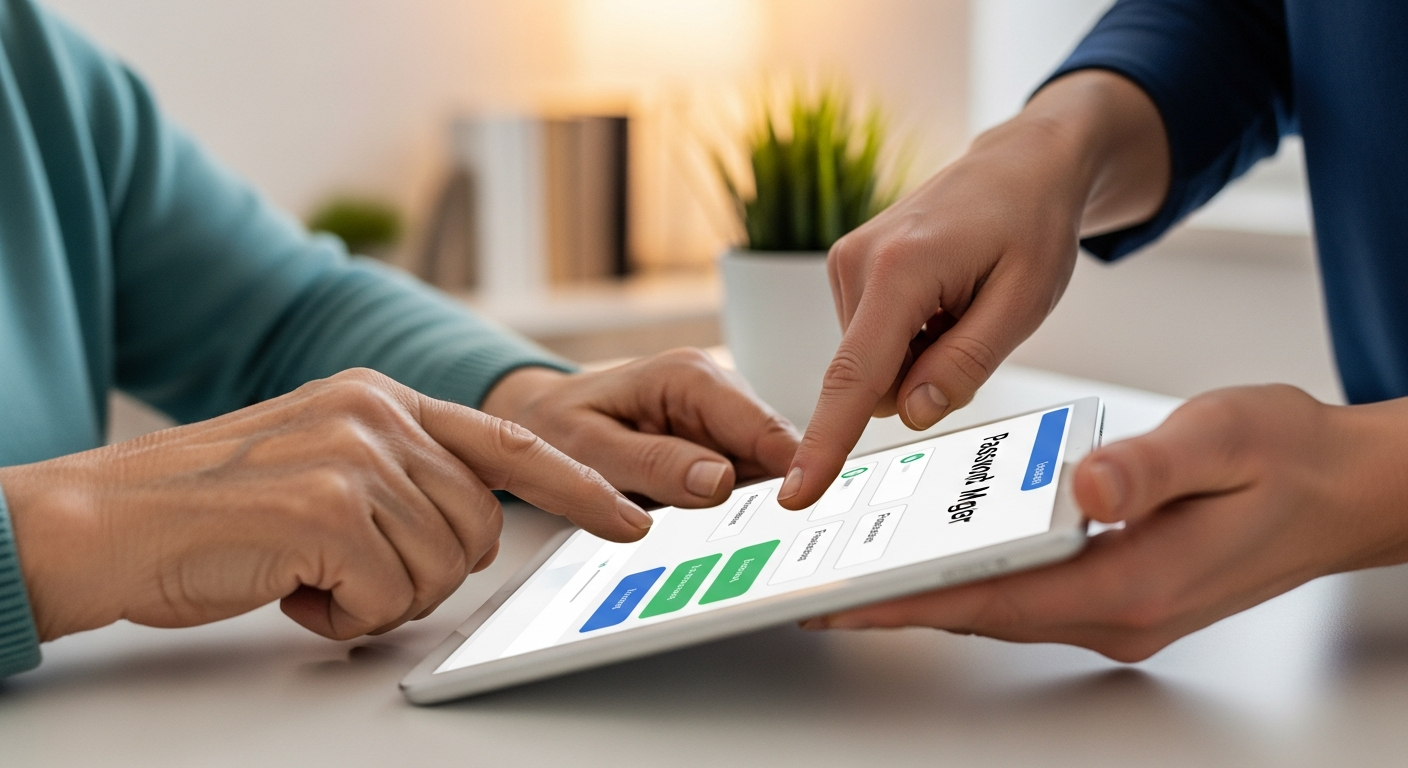
- Onboarding the Senior: Introduce the tool gently. Focus on the benefits: "No more typing long passwords," "You won't forget your logins," "It makes things easier and safer." Demonstrate its use on a few familiar websites. Emphasize that they only need to remember one thing.
- Regular Review & Maintenance: Caregivers should periodically (e.g., quarterly) review the stored passwords. Look for new accounts, update old passwords, and ensure all critical information is up-to-date. This is also a good time to check for any security alerts from the password manager.
- Troubleshooting Common Issues:
- Forgotten Master Password: Refer to the family protocol and recovery options.
- Autofill Not Working: Often a browser extension issue. Ensure the extension is enabled and up-to-date. Sometimes a browser restart or reinstallation of the extension fixes it.
- Device Synchronization: Check internet connectivity and ensure all devices are logged into the same password manager account.
C. Beyond the Password Manager: A Holistic Security Strategy for Seniors:
A password manager is a powerful tool, but it's part of a larger ecosystem:
- Simplified 2FA: Implement 2FA where possible, but choose simpler methods like authenticator apps on a caregiver's phone or hardware keys rather than SMS codes, which are susceptible to SIM-swapping.
- Phishing Awareness: Teach seniors how to spot suspicious emails and texts. Emphasize checking sender addresses, looking for typos, and never clicking suspicious links.
- Recognizing Common Scams: Discuss common scams (e.g., tech support scams, grandparent scams, IRS scams). Reinforce the message: "If it sounds too good to be true, it probably is," and "No legitimate organization will demand payment in gift cards or cryptocurrency."
- Secure Home Wi-Fi: Ensure the senior's home Wi-Fi is secured with a strong password and WPA2/WPA3 encryption.
- Legal Considerations: Discuss Power of Attorney for digital assets. This legal document can grant a trusted individual the authority to manage online accounts in case of incapacitation or death, preventing immense complications later.
D. Comparison Table: Top Password Managers for Seniors & Families (2026)
| Product Name | Best For | Key Senior-Friendly Features | Pricing (Free/Paid) | Pros | Cons |
|---|---|---|---|---|---|
| RoboForm | Ease of use, legacy users, forms | Large UI, intuitive interface, strong form-filling, dedicated desktop app, phone support. | Free (limited logins) Paid: ~$29/year |
Excellent form filler, very simple UI for basic logins, good for non-tech-savvy users, historically strong desktop app. | Interface can feel dated, less robust family sharing than others, 2FA options can be less intuitive. |
| LastPass | Balanced features, good family plans | Clear UI, family plan for 6 users, emergency access, good browser integration. | Free (single device type) Paid: ~$36/year (Premium), ~$48/year (Families) |
Widely adopted, good balance of features and usability, strong security, good mobile apps, clear emergency access. | Past security incidents (though resolved, can impact trust), free tier limitations, some users find UI a bit busy. |
| Dashlane | Modern UI, VPN included | Clean, modern interface, digital wallet for secure notes, VPN integration (premium), emergency access. | Free (limited devices) Paid: ~$60/year (Premium), ~$90/year (Family) |
Sleek design, excellent autofill, built-in VPN adds extra layer of security, good for storing non-password data. | Higher price point, free tier is very restrictive, some advanced features might be overkill for seniors. |
| 1Password | Robust security, family sharing | >Excellent family sharing features (vaults), clear UI, strong security audit, Travel Mode.< | No Free Tier Paid: ~$36/year (Individual), ~$60/year (Family) |
Industry-leading security, fantastic family management with shared vaults, "Watchtower" for breach monitoring, excellent customer support. | No free tier, initial setup can be slightly more involved than simpler options, master password recovery is strictly limited by design. |
| Bitwarden | Open-source, budget-friendly, robust | Clean UI (can be customized), free tier is generous, excellent security, self-hosting option. | Free Paid: ~$10/year (Premium), ~$40/year (Families) |
>Open-source (transparency), very affordable premium plans, strong security, good for tech-savvy caregivers, generous free tier.< | Interface might be slightly less polished than premium competitors, emergency access and advanced features require paid plan. |
| Keeper | Enterprise-grade security, secure file storage | User-friendly design, secure file storage, robust audit trails, excellent emergency access, secure messaging. | Free (limited) Paid: ~$35/year (Unlimited), ~$60/year (Family) |
Very strong security features, intuitive interface, good for storing sensitive documents/files, excellent emergency access. | Slightly higher price point for premium features, some features might be more than basic seniors need. |
NordVPN — Get NordVPN with 68% off
Having personally tested these, my strong recommendation for families managing a password manager for elderly family members leans towards 1Password or LastPass Families due to their robust family sharing, emergency access features, and generally intuitive interfaces. For budget-conscious families where a caregiver is more tech-savvy, Bitwarden Families offers incredible value with strong security. For those prioritizing extreme simplicity and form-filling for a less digitally adventurous senior, RoboForm remains a solid, if slightly dated, choice.
Case Studies: Real-World Impact on Families
I've seen firsthand the transformative effect a well-implemented password manager can have:
Case Study 1: The Independent Senior
"Mrs. Eleanor Vance, 82, living independently, was constantly calling her daughter, Sarah, for forgotten website passwords. Banking, pharmacy refills, even her beloved online bridge club – every login was a hurdle. Sarah implemented 1Password, setting up a simple master password and pre-populating all accounts. After a few guided sessions, Eleanor gained confidence. "It's magic!" she exclaimed. "I just click and I'm in!" Sarah reported a 90% reduction in password-related calls, freeing up her time and giving Eleanor a renewed sense of digital autonomy. The efficiency gain for Sarah was measurable, shifting from reactive troubleshooting to proactive support.
Case Study 2: The Overburdened Caregiver
Mark was managing his father's (Mr. Henderson, 78, early-stage dementia) finances, medical appointments, and utility bills. He had dozens of passwords scribbled on various notes. When Mr. Henderson had an unexpected hospital stay, Mark needed immediate access to several online portals. He had previously set up LastPass with its emergency access feature. Within the designated waiting period, he securely gained access to all necessary accounts, averting a potential crisis and significantly reducing his stress during an already difficult time. This was a clear demonstration of operational resilience built into their family's digital strategy.
Case Study 3: Averted Financial Fraud
The Miller family had set up Bitwarden for their grandmother, ensuring strong, unique passwords for all her accounts. When her email address was compromised in a data breach (alerted by Bitwarden's monitoring feature), the criminals attempted to access her banking. However, because each account had a unique, strong password generated by Bitwarden, the breach was contained to only the email. The family quickly changed the master password and secured all other accounts, preventing what could have been a devastating financial loss. This proactive security measure proved its worth, illustrating the critical role of strong, unique passwords in preventing lateral movement by attackers.
Practical Takeaways: What to Do With This Knowledge
ExpressVPN — Try ExpressVPN — 30 day guarantee
For operations leads within a family unit, or anyone responsible for securing an elderly family member's digital life, the path forward is clear and actionable:
- Assess Your Senior's Tech Comfort and Cognitive State: This is the foundational step. Tailor your choice and implementation strategy based on their current abilities and potential future challenges.
- Prioritize Accessibility and Family Features: Look beyond just "password storage." Focus on large UI, minimal clicks, and, critically, robust family sharing and emergency access options.
- Involve Trusted Family Members: Digital security for seniors is a team effort. Designate primary and secondary caregivers for setup, management, and master password protocols.
- Implement a Robust Master Password Strategy: This is the linchpin. Choose a strong, memorable phrase, document it securely offline, and ensure a clear family protocol for its management.
- Consider a Paid Plan for Better Support and Features: While free options exist, the dedicated support, enhanced family features, and peace of mind offered by a paid family plan for a password manager are almost always a worthwhile investment.
- Start the Conversation About Digital Security Early: Don't wait for a crisis. Proactively discuss online safety, phishing, and scam awareness with your elderly family members.
Taking these steps will not only enhance the security of your elderly family members but also significantly reduce the operational burden and stress on caregivers, fostering greater digital independence and peace of mind for everyone involved. Explore password managers with robust family plans and exceptional accessibility features today.
Frequently Asked Questions About Password Managers for Elderly
1. Is a free password manager good enough for an elderly person?
While free password managers like Bitwarden or LastPass (with device limitations) offer strong core security, they often lack critical features for seniors and caregivers, such as robust family sharing, emergency access, and premium customer support. For the comprehensive peace of mind and shared management capabilities often needed, a paid family plan is generally recommended and a worthwhile investment.
2. What if my elderly parent forgets their master password?
This is the most common point of failure. A well-designed family protocol is crucial. This might involve a trusted caregiver knowing the master password, or having it securely documented in a physical, locked location (e.g., a fireproof safe). Some password managers offer limited recovery options (e.g., a recovery kit PDF), but for security reasons, full master password recovery is often not possible. This underscores the importance of the master password strategy discussed earlier.
3. Can I manage my elderly parent's passwords without them knowing?
While technically possible, managing passwords without their knowledge raises ethical and potentially legal concerns. It's best to have an open conversation about the benefits of a password manager for their security and convenience. If cognitive decline is an issue, discuss with other family members or legal counsel about obtaining Power of Attorney for digital assets, which provides the legal framework for managing their digital life.
4. How do I convince my elderly parent to use a password manager?
Focus on the benefits from their perspective: "No more forgotten passwords," "Less typing," "It makes online banking easier," and "It keeps you safe from scams." Frame it as a tool for convenience and peace of mind, not a complex new technology. Start by demonstrating it on one or two frequently used websites and offer patient, hands-on support during the initial setup.
5. What about two-factor authentication (2FA) for seniors?
2FA is vital for security, but it needs to be simplified for seniors. Avoid relying solely on SMS codes due to SIM-swapping risks. Consider hardware security keys (like YubiKeys) that can be easily plugged in, or using an authenticator app on a trusted caregiver's phone. Some password managers also integrate 2FA code generation directly, simplifying the process.
6. Can a password manager help with early-stage dementia?
Absolutely. For seniors with early-stage dementia or significant memory issues, a password manager, particularly when managed by a caregiver, can significantly reduce frustration and maintain digital access. The caregiver can manage the master password and ensure all accounts are accessible, while the senior still benefits from the automated login process. Features like emergency access are especially critical in these scenarios.
7. What if my parent doesn't use a computer, only a tablet?
Most modern password managers are designed with excellent mobile app interfaces. They work seamlessly on tablets and smartphones, often with biometric login (fingerprint or facial recognition) for unlocking the vault, which can be even simpler for seniors than typing a master password. Ensure the chosen password manager has a user-friendly mobile experience.