Optimize Home Office Ergonomics
Transform your remote workspace for comfort & productivity
Struggling with Remote Work Discomfort? Discover How to Optimize Your Existing Home Office for Ergonomics
>Are you a dedicated business professional finding that your "temporary" home office setup is now a source of persistent neck pain, backaches, or eye strain? You're not alone. The shift to remote work has brought unprecedented flexibility, but often at the cost of ergonomic well-being. You deserve a workspace that supports your productivity and health, not detracts from it.<
This comprehensive guide will show you exactly how to transform your current home office into an ergonomic powerhouse, without needing a complete overhaul or breaking the bank. We’ll delve into practical, data-driven solutions and highlight the best tools and strategies to ensure your comfort, focus, and long-term health. Say goodbye to workday aches and hello to sustained productivity.
The Hidden Costs of a Non-Ergonomic Home Office
Many remote professionals underestimate the cumulative impact of poor ergonomics. It's not just about a sore back; it's about:
- Reduced Productivity: Discomfort is a constant distraction, pulling your focus away from critical tasks.
- Increased Healthcare Costs: Chronic pain often leads to doctor visits, physical therapy, and even medication.
- Decreased Job Satisfaction: Feeling physically drained by your workspace can erode your enjoyment of work and even your career.
- Long-Term Health Issues: Repetitive strain injuries (RSIs), carpal tunnel syndrome, and chronic spinal issues are serious risks.
The good news? You don't need a corporate budget to achieve an ergonomically sound setup. With strategic choices and smart investments, you can significantly improve your existing space. Let's dive into the solutions that deliver tangible results.
Ergonomic Essentials: A Quick Comparison of Top Solutions
To give you a head start, here’s a quick overview of some of the most impactful ergonomic solutions we'll be discussing. We've focused on items that offer significant improvements for an existing setup.

| Product Category | Key Benefit | Typical Price Range | Best For | Quick Recommendation |
|---|---|---|---|---|
| Ergonomic Office Chair | Lumbar support, adjustability, posture correction | $300 - $1,500+ | Anyone spending 4+ hours seated daily | Herman Miller Sayl (Mid-range) or Steelcase Gesture (Premium) |
| Standing Desk Converter | Alternating between sitting and standing, improved circulation | $150 - $400 | Those with existing desks, limited space, or budget | FlexiSpot M Series or Varidesk ProPlus |
| Ergonomic Keyboard | Reduced wrist strain, natural hand positioning | $70 - $250 | Heavy typists, those with wrist discomfort | Logitech Ergo K860 or Kinesis Freestyle Pro |
| Ergonomic Mouse | Neutral wrist/hand posture, reduced forearm pronation | $40 - $150 | Anyone using a mouse for extended periods | Logitech MX Master 3S or Anker Vertical Ergonomic Mouse |
| Monitor Arm / Riser | Correct eye-level positioning, desk space optimization | $30 - $150 | Anyone with a static monitor, multiple screens | Vivo Single/Dual Monitor Mount |
| Footrest | Improved circulation, lower back support, correct leg angle | $25 - $75 | Shorter individuals, those whose feet don't touch the floor | Kensington SoleSaver or Humanscale FM300 |
This table offers a snapshot. Below, we'll dive deeper into each category, providing detailed reviews and specific product recommendations to help you make an informed decision.
>Deep Dive: Optimizing Your Existing Home Office – Key Categories & Top Picks<
1. The Foundation: Your Ergonomic Office Chair
Your chair is arguably the most critical component of an ergonomic setup. Even if you have an existing desk, upgrading your chair can make a monumental difference. Look for chairs with adjustable seat height, depth, armrests, and lumbar support.
Detailed Review: Herman Miller Sayl Chair
Why it's a Top Pick: The Herman Miller Sayl offers exceptional ergonomic design and comfort at a more accessible price point than some of their other iconic models. Its unique unframed back is inspired by suspension bridges, providing intelligent support for your spine without rigid boundaries. It's incredibly adjustable, allowing you to fine-tune lumbar support, arm height, seat depth, and tilt tension.
- Key Features: PostureFit sacral support, adjustable lumbar, harmonic tilt, Y-Tower support.
- Benefits for Professionals: Promotes natural spinal alignment, reduces pressure points, and encourages movement. Its compact footprint makes it ideal for home offices where space might be a premium.
- Considerations:> While more affordable than other Herman Miller chairs, it's still an investment. Some users might prefer a more traditional, padded back.<
- Price Range: Typically $600 - $900.
Ideal User: Professionals seeking premium ergonomics and design without the top-tier price tag of a fully loaded Aeron or Embody. Excellent for those who value flexible back support and a modern aesthetic.
Ready to invest in your comfort?
Amazon — See latest price on Amazon
Detailed Review: Steelcase Gesture Chair
Why it's a Top Pick: The Steelcase Gesture is engineered for the way we work today – with multiple devices and postures. Its "360-degree arm" moves like the human arm, supporting you in any position, whether you're typing, swiping on a tablet, or leaning back to take a call. The back and seat mimic the movement of the human body, providing continuous support.
- Key Features: Core Equalizer, back and seat interface, 360-degree armrests, extensive adjustability.
- Benefits for Professionals: Unparalleled adaptability to various postures and devices, reducing strain from modern work habits. It's incredibly robust and built to last.
- Considerations: This is a premium chair with a premium price. Its extensive adjustability can take a little time to master.
- Price Range: Typically $1,200 - $1,800+.
Ideal User:> Business professionals who frequently change positions, use multiple devices (laptop, tablet, phone), and are willing to invest in the absolute best in ergonomic adaptability and long-term durability. Perfect for those with long working hours.<
Experience ultimate adaptability.
FlexiSpot — Check FlexiSpot prices
2. Dynamic Work: Standing Desk Converters
If replacing your entire desk isn't feasible, a standing desk converter is an excellent solution. It allows you to alternate between sitting and standing throughout the day, improving circulation, reducing sedentary time, and potentially boosting energy levels.
Detailed Review: FlexiSpot M Series Standing Desk Converter
Why it's a Top Pick: FlexiSpot's M Series offers a wide range of sizes and configurations, making it easy to find one that fits your existing desk. It features a gas spring hovering system for smooth and effortless height adjustment. The two-tier design provides a spacious top surface for monitors and a lower keyboard tray.
- Key Features: Smooth gas spring lift, sturdy X-frame design, removable keyboard tray, various sizes.
- Benefits for Professionals: Easy to integrate into an existing setup, promotes movement, and reduces the health risks associated with prolonged sitting. The stability is excellent, even at maximum height.
- Considerations: It adds bulk to your desk when in the lowest position. Ensure your desk is deep enough to accommodate the footprint.
- Price Range: Typically $180 - $350.
Ideal User: Professionals with a solid existing desk who want to easily incorporate standing into their workday without a full desk replacement. Great for those on a moderate budget seeking reliable performance.
Transform your desk instantly.
Amazon Associates — See latest price on Amazon
3. Hand & Wrist Health: Ergonomic Keyboards & Mice
Repetitive strain injuries (RSIs) are common among remote workers due to prolonged typing and mousing. Ergonomic peripherals can significantly alleviate and prevent discomfort.
Detailed Review: Logitech Ergo K860 Ergonomic Keyboard
Why it's a Top Pick: The K860 is a wireless split ergonomic keyboard designed for a more natural typing posture. Its curved, split keyframe reduces wrist pronation, and the integrated, pillowed wrist rest provides 54% more wrist support, reducing wrist bending by 25%. It's comfortable, quiet, and offers a familiar typing experience despite its ergonomic design.
- Key Features: Split and curved keyframe, integrated pillowed wrist rest, adjustable palm lift, multi-device connectivity.
- Benefits for Professionals:> Significantly reduces wrist and forearm strain, promotes a more relaxed typing posture, and helps prevent carpal tunnel syndrome. The multi-device feature is excellent for switching between a laptop and desktop.<
- Considerations: Takes a short adjustment period to get used to the split layout. Not ideal for very small desk spaces.
- Price Range: Typically $110 - $130.
Ideal User: Heavy typists, writers, coders, or anyone experiencing wrist discomfort with a standard keyboard. Perfect for those who value comfort and productivity in a wireless, full-size ergonomic solution.
Upgrade your typing experience. Get the Logitech Ergo K860
Detailed Review: Logitech MX Master 3S Ergonomic Mouse
Why it's a Top Pick: While not a vertical mouse, the MX Master 3S is designed with a sculpted shape that cradles your hand in a more natural position than traditional mice, reducing forearm pronation. Its MagSpeed electromagnetic scrolling is incredibly precise and fast, and the customizable buttons boost productivity. It's renowned for its comfort and feature set.
- Key Features: Sculpted ergonomic shape, MagSpeed scrolling, customizable buttons, Darkfield tracking (works on glass), multi-device connectivity.
- Benefits for Professionals: Reduces strain on the wrist and forearm, enhances workflow with customizable shortcuts, and offers superior precision. The comfortable grip makes long work sessions far more tolerable.
- Considerations: Right-hand specific. While ergonomic, it's not a full vertical mouse, so those with severe pronation issues might need a different solution.
- Price Range: Typically $90 - $110.
Ideal User:> Professionals who spend hours mousing, especially those in creative fields or data analysis, and prefer a traditional mouse form factor with advanced ergonomic features and customization. Excellent for productivity-focused users.<
Boost your productivity and comfort. Buy the Logitech MX Master 3S
4. Eye & Neck Health: Monitor Arms & Risers
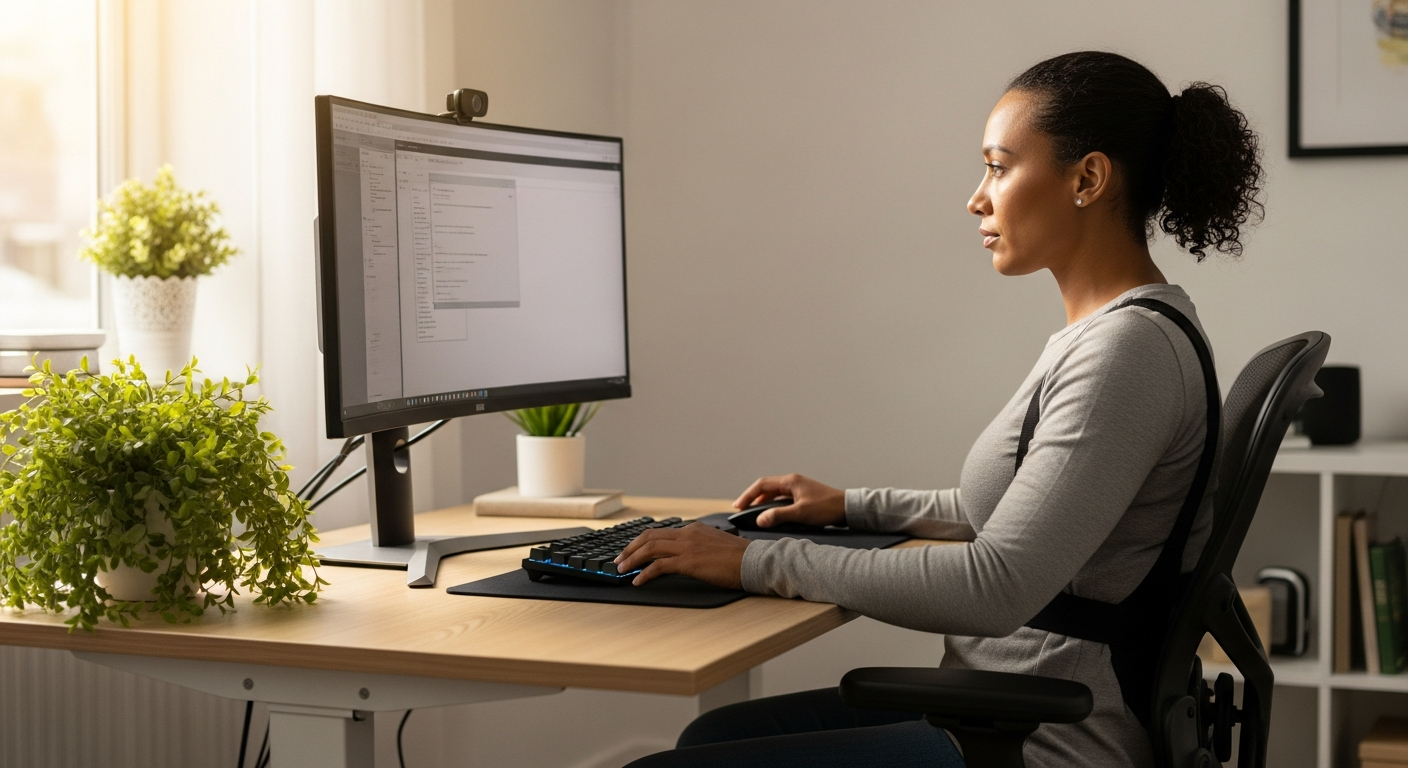
Your monitor should be positioned so the top of the screen is at or slightly below eye level, and about an arm's length away. This prevents neck strain and eye fatigue. If your existing monitor stand doesn't allow this, a monitor arm or riser is essential.
Detailed Review: VIVO Single/Dual Monitor Mount (Desk Clamp)
Why it's a Top Pick: VIVO offers a range of highly affordable and effective monitor arms that clamp directly onto your existing desk. They free up valuable desk space and allow for precise adjustment of monitor height, tilt, swivel, and rotation. Available in single, dual, and even triple monitor configurations.
- Key Features: Full articulation, VESA compatible, desk clamp or grommet base options, integrated cable management.
- Benefits for Professionals: Eliminates neck strain by allowing perfect eye-level positioning. Clears up desk space, making your workspace feel less cluttered and more organized. Very cost-effective.
- Considerations: Requires a desk with an edge for clamping (or a grommet hole). Ensure your monitor's weight is within the arm's capacity.
- Price Range: Single arm: $30 - $50; Dual arm: $50 - $80.
Ideal User: Any professional using a desktop monitor (or two) who needs to achieve proper eye-level positioning and reclaim desk space. Essential for preventing tech neck and improving visual comfort.
Achieve perfect monitor height. Find Your VIVO Monitor Mount
Pricing & Suitability: Matching Solutions to Your Budget & Needs
Optimizing your home office for ergonomics doesn't have to be an all-or-nothing proposition. We've broken down recommendations by budget segments to help you prioritize your investments.

Budget-Conscious Professional (Under $250)
You're looking for significant improvements without a major investment. Focus on the highest impact areas first.
- Priority 1: Monitor Positioning. A simple monitor riser or a basic VIVO single monitor arm ($30-$50) can prevent neck strain.
- Priority 2: Peripherals. An ergonomic mouse like the Anker Vertical Ergonomic Mouse ($25-$35) and a basic ergonomic keyboard (e.g., Microsoft Ergonomic Keyboard, $50-$70) offer substantial relief.
- Priority 3: Footrest. If your feet dangle or you're shorter, a footrest ($25-$50) can significantly improve lower back support and circulation.
- Quick Wins: DIY solutions like stacking books under your monitor temporarily, adjusting your existing chair to its maximum ergonomic potential, and taking frequent micro-breaks.
Mid-Range Investor ($250 - $800)
You're ready to make meaningful upgrades that provide lasting comfort and health benefits. This is where you can start investing in core components.
- Priority 1: Ergonomic Chair. This is your biggest impact area. A Herman Miller Sayl (used or refurbished, $400-$600) or a new ergonomic chair from brands like Branch Ergonomic Chair ($300-$500) offers excellent value.
- Priority 2: Standing Desk Converter. A FlexiSpot M Series or Varidesk ProPlus ($180-$350) allows you to alternate postures, a huge benefit for long workdays.
- Priority 3: Premium Peripherals. The Logitech Ergo K860 keyboard ($110-$130) and MX Master 3S mouse ($90-$110) offer superior comfort and productivity features.
- Consider: A quality desk mat or anti-fatigue mat if you opt for a standing converter.
Premium Ergonomic Setup ($800+)
You prioritize long-term health, peak performance, and are willing to invest in the best-in-class solutions for your home office.
- Priority 1: Top-Tier Ergonomic Chair. A new Steelcase Gesture or Herman Miller Aeron (starting $1,200+) provides unparalleled support and adjustability.
- Priority 2: Full Standing Desk. While this guide focuses on existing desks, if you're open to replacing, a high-quality electric standing desk (e.g., Uplift Desk, Fully Jarvis, $500-$1,000+) offers the most seamless sit-stand experience. If sticking with a converter, invest in a premium model.
- Priority 3: Advanced Peripherals. Consider a Kinesis Freestyle Pro keyboard ($150-$250) or a gaming-grade ergonomic mouse for specific needs.
- Enhancements: Ergonomic lighting (e.g., BenQ ScreenBar), a high-quality anti-fatigue mat, and professional-grade monitor arms for multiple large displays.
Persona Matching: Finding Your Perfect Ergonomic Solution
Understanding your work habits, existing challenges, and budget helps tailor the best ergonomic strategy for you.
The "Neck Pain & Tech Neck" Professional
Your Challenge: You constantly crane your neck forward to look at your screen, leading to stiffness, headaches, and upper back pain. You might be working off a laptop or have a monitor that's too low.
- Solution Focus: Monitor positioning is paramount.
- Recommendations:
- Must-Have: VIVO Single/Dual Monitor Mount ($30-$80) or a sturdy monitor riser.
- Highly Recommended: If using a laptop, an external keyboard and mouse are crucial, along with a laptop stand to bring the screen to eye level.
- Bonus: Consider ergonomic lighting like the BenQ ScreenBar ($100-$130) to reduce eye strain.
The "Lower Back & Sciatica" Sufferer
Your Challenge: Prolonged sitting in an unsupportive chair leaves your lower back aching, sometimes radiating down your leg. You might slouch or find yourself constantly shifting to get comfortable.
- Solution Focus: Superior seating and movement.
- Recommendations:
- Must-Have: A high-quality ergonomic office chair with excellent lumbar support and adjustability (e.g., Herman Miller Sayl, Steelcase Gesture, Branch Ergonomic Chair, $300-$1,800).
- Highly Recommended: A standing desk converter (e.g., FlexiSpot M Series, $180-$350) to break up long sitting periods.
- Bonus: A quality ergonomic footrest (e.g., Humanscale FM300, $150-$200) to ensure proper leg and hip alignment.
The "Wrist & Forearm Discomfort" Typist/Mouser
Your Challenge: You feel tingling, numbness, or pain in your wrists, hands, or forearms, especially after extended periods of typing or using a mouse. You might be at risk for carpal tunnel or other RSIs.
- Solution Focus: Ergonomic peripherals.
- Recommendations:
- Must-Have: Ergonomic keyboard (e.g., Logitech Ergo K860, Kinesis Freestyle Pro, $110-$250) and an ergonomic mouse (e.g., Logitech MX Master 3S, Anker Vertical Ergonomic Mouse, $40-$110).
- Highly Recommended: Ensure your desk height allows your elbows to be at a 90-100 degree angle when typing. If not, consider a desk converter or an adjustable keyboard tray.
- Bonus: Gel wrist rests for both keyboard and mouse, though many ergonomic peripherals integrate this.
The "All-Around Discomfort & Fatigue" Remote Veteran
Your Challenge: You've been remote for a while, and a general sense of fatigue, aches, and reduced energy is setting in. You need a holistic approach to revitalize your workspace.
- Solution Focus: Comprehensive ergonomic overhaul.
- Recommendations:
- Must-Have: Invest in a top-tier ergonomic chair (Steelcase Gesture, Herman Miller Aeron) AND a standing desk converter (FlexiSpot, Varidesk).
- Highly Recommended: Upgrade all peripherals – ergonomic keyboard, mouse, and monitor arm(s).
- Bonus: Anti-fatigue mat for standing, ergonomic lighting, and integrating regular movement breaks with reminders (e.g., using a Pomodoro timer).
Your Step-by-Step Guide to Ergonomic Optimization
Now that you know what to look for, here’s how to systematically implement these changes in your existing home office for maximum impact. Think of this as your personal ergonomic audit and action plan.

Phase 1: Assess & Adjust (Free/Low Cost)
- Chair Adjustment:
- Height: Adjust your chair so your feet are flat on the floor (or a footrest) and your knees are at a 90-100 degree angle.
- Backrest: Ensure your lower back is supported. Recline slightly (100-110 degrees) to take pressure off your spine.
- Armrests: Adjust them so your shoulders are relaxed and your elbows are at a 90-100 degree angle when typing. They should support your arms without shrugging your shoulders.
- Seat Depth: Ensure there are 2-4 fingers' width between the edge of the seat and the back of your knees.
- Monitor Positioning:
- Height: The top of your screen should be at or slightly below eye level. If using a laptop, get an external monitor or a laptop stand.
- Distance: Position the monitor about an arm's length away (20-30 inches).
- Angle: Tilt the monitor slightly upwards to reduce glare and improve viewing angle.
- Keyboard & Mouse Placement:
- Keep your keyboard directly in front of you, close enough that your elbows stay close to your body.
- Your mouse should be close to your keyboard, allowing you to use it without reaching or twisting your wrist.
- Keep wrists straight and relaxed, not bent up, down, or to the side.
- Lighting: Ensure your workspace is well-lit, avoiding glare on your screen. Position your monitor away from direct windows or bright overhead lights.
- Breaks & Movement: Set reminders to take short breaks every 30-60 minutes. Stand, stretch, walk around, and look away from your screen (20-20-20 rule: every 20 minutes, look at something 20 feet away for 20 seconds).
Phase 2: Strategic Upgrades (Moderate Cost)
Based on your "Persona Matching" and budget, start investing in the key items that will address your primary discomforts.
- Prioritize Your Chair: If your current chair is inadequate, this is the first major investment. Refer to our chair reviews.
- Address Monitor Height: If free adjustments aren't enough, invest in a monitor arm or riser.
- Upgrade Peripherals: If you're experiencing wrist or hand pain, an ergonomic keyboard and mouse are crucial.
- Introduce Movement: A standing desk converter is a game-changer for breaking up sedentary periods.
- Consider a Footrest: If your feet don't sit flat or you need better lower back support.
Phase 3: Refine & Enhance (Higher Cost/Specialized)
Once the core ergonomic elements are in place, you can refine your setup for peak comfort and performance.
- Anti-Fatigue Mat: Essential for comfort if you're using a standing desk converter frequently.
- Ergonomic Lighting: A dedicated screen bar or task light can significantly reduce eye strain.
- Advanced Ergonomic Tools:> Specialized keyboards (e.g., fully programmable, split designs), vertical mice, or even dictation software for voice commands can further reduce strain for specific needs.<
- Cable Management: A tidy workspace reduces visual clutter and potential tripping hazards, contributing to mental well-being.
Remember, ergonomics is an ongoing process. Listen to your body, make small adjustments, and don't hesitate to invest in your health. Your productivity and well-being depend on it.
Ready to Transform Your Home Office?
Don't let discomfort dictate your workday. Take control of your ergonomic health and unlock your full remote work potential. We've shown you the tools, the strategies, and the path to a pain-free, productive home office.
Explore our top recommendations and start building the ergonomic setup you deserve today. Your body, your focus, and your career will thank you.
Click below to compare the best ergonomic solutions and find the perfect fit for your needs and budget.
Monday.com — Try Monday.com free — no credit card needed
Discover Ergonomic Keyboards & Mice Find Monitor Arms & Accessories
Frequently Asked Questions About Home Office Ergonomics
Disclaimer: This article contains affiliate links. If you make a purchase through these links, we may earn a commission at no extra cost to you. We only recommend products we genuinely believe in and that align with our mission to provide valuable, high-converting content.