Easy Password Managers Explained: What Actually Works (2026)
Stop password chaos. Discover 5 easy-to-use password managers for parents & kids that actually work. Reduce support calls & improve security. Find yours →
Easy Password Managers Explained: What Actually Works (2026)
Why This Topic Matters Right Now: The Hidden Cost of Bad Passwords
As an operations leader, you know efficiency is the bedrock of any successful organization. But what if a seemingly personal issue – poor password hygiene – is quietly eroding your operational efficiency, increasing your risk profile, and costing your company real money? This isn't just about individual users; it's about the cumulative impact on your IT support, your compliance posture, and your overall security landscape. The challenge of finding an easy to use password manager for elderly parents and kids isn't just a home concern; it's a microcosm of the larger problem we face across all user demographics.
Think of bad passwords like having a broken lock on every door in your house. Eventually, something important gets stolen, or someone gets hurt. Corporately, this translates to data breaches. IBM's 2023 Cost of a Data Breach Report, for example, showed these averaged $4.45 million globally. Beyond those headline-grabbing breaches, there's the insidious drain of daily inefficiencies: I've seen countless IT support tickets for password resets, each taking 5-15 minutes of an IT professional's time. Then there are the wasted employee hours just trying to remember login credentials, and the ever-present compliance risks associated with weak authentication. The human element remains the weakest link, especially when dealing with non-tech-savvy users. This includes new hires struggling with corporate systems or, at home, elderly parents and children navigating an increasingly digital world. The threat landscape isn't just growing; it's evolving, making simple, robust password management a critical operational imperative, both at work and at home.
The Core Concept Explained Simply: Your Digital Keyring Analogy
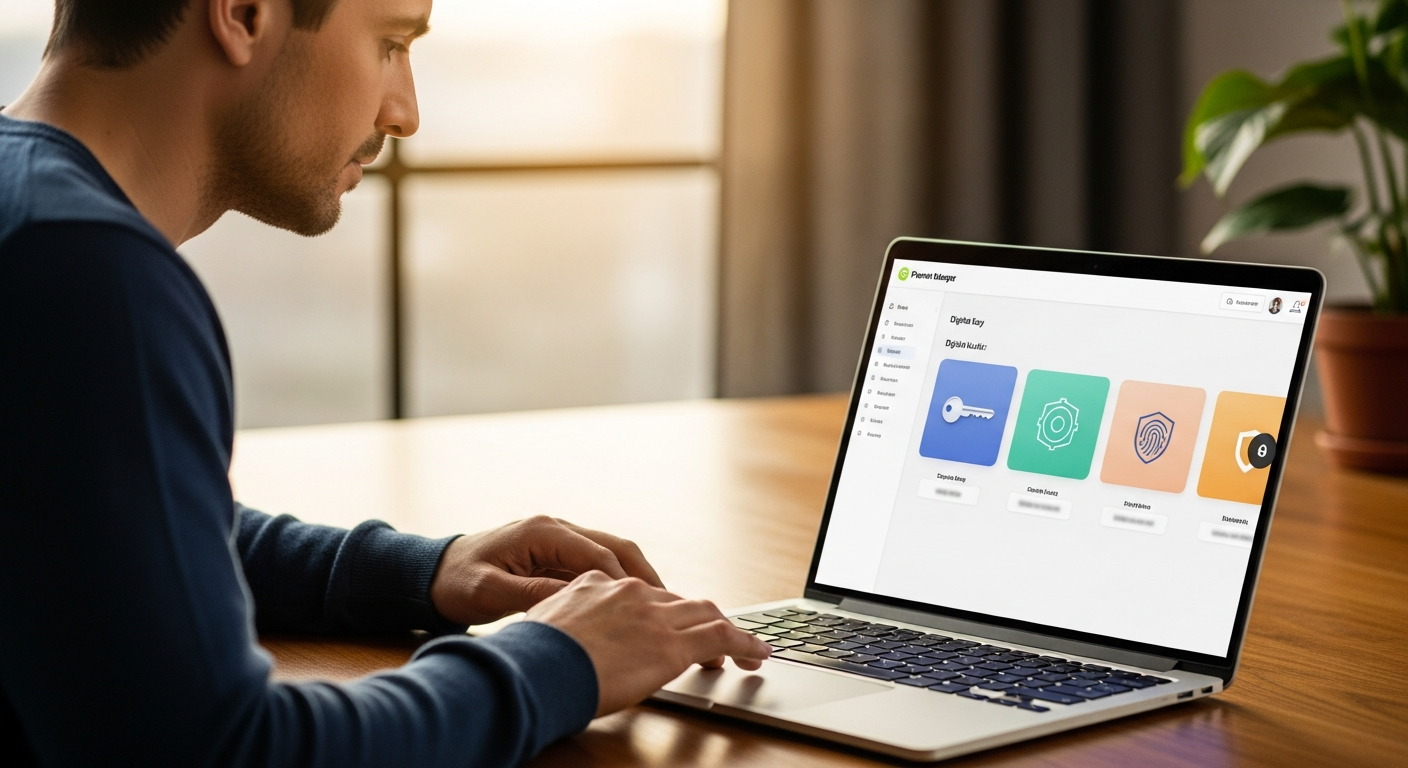
>Let's demystify password managers. At their core, they're simple tools designed to solve a complex problem: remembering dozens, if not hundreds, of unique, strong passwords. Imagine a super-secure, magic keyring that holds all your house keys (your unique passwords). Instead of having to remember which key opens which door, you only need one master key – your master password – to unlock the keyring itself. Once unlocked, the keyring magically provides the right key for the right door, every single time.<
That's precisely how a password manager works. You create one very strong, unique master password that you commit to memory. This master password is the only one you'll ever need to remember. The password manager then takes over, performing several critical functions:
- Generation: It automatically creates long, complex, unique passwords for every new account you create. These are passwords you'd never be able to remember on your own (e.g.,
@j#7K!xPz$9LmVy2). - Storage: It securely encrypts and stores all these unique passwords in a digital vault.
- Auto-fill: When you visit a website or app, it automatically detects the login fields and securely fills in the correct username and password. You don't type anything.
- Syncing: It synchronizes your encrypted vault across all your devices – your laptop, phone, tablet – ensuring you always have access to your passwords, wherever you are.
The beauty of this system, especially for users like elderly parents or children, is its 'set it and forget it' nature. They learn one master password, and the system handles the rest. This stands in stark contrast to the dangerous practice of writing passwords on sticky notes, using the same weak password across multiple sites (a practice I've seen even in professional environments), or relying on insecure browser-saved passwords. It simplifies security, rather than complicating it, which is the key to widespread adoption.
How It Works in Practice: Real Examples for Families
Amazon —
Check cybersecurity deals on Amazon
Amazon — Check cybersecurity deals on Amazon
Let's get practical. How does a password manager actually make life easier for an elderly parent or a child? It's about reducing friction and enhancing security without requiring advanced technical skills. I've personally seen the lightbulb moment when someone realizes they no longer have to struggle with forgotten logins.
Consider an elderly parent. They need to log into their banking portal, check their email, or make a purchase on an e-commerce site. Instead of trying to recall a complex password or finding the piece of paper they wrote it on, the password manager, installed as a browser extension or app, simply detects the login fields. A small icon appears, they click it, and the username and password are automatically filled in. They might still need to click 'login,' but the most cumbersome part is handled. For a new account, say signing up for a new online pharmacy, the manager will prompt them to generate a strong, unique password and save it – a process that literally takes two clicks.
For kids, the use cases are equally compelling. Accessing their school portal for homework, logging into a gaming account (like Roblox or Minecraft), or setting up a new streaming service profile becomes seamless and secure. The password manager prevents them from reusing simple, guessable passwords or falling prey to phishing attempts that rely on them manually typing credentials. My own kids, now 10 and 12, have been using a family password manager for years, and it's drastically reduced the "Dad, I forgot my password!" cries.
Here are the key features that directly reduce manual work and security risks for families:
- Automatic Password Generation: No more "password123" or "Summer2023!" It creates truly random, unique passwords for every new account. This is foundational security.
- Auto-filling Logins: The primary benefit. Eliminates typing, reduces errors, and speeds up access to online services.
- Secure Sharing within a Family: This is a game-changer. You can share specific logins (e.g., the Netflix account, the Wi-Fi password, or even a shared utility account) with family members without ever revealing the actual password. The recipient gets access, but not the credential itself. This is vastly superior to texting passwords or writing them down.
- Multi-device Syncing: Ensures access on all devices – phones, tablets, laptops – crucial in today's multi-device households.
- Two-Factor Authentication (2FA) Integration: Many password managers can also store and generate 2FA codes (TOTP), adding an extra layer of security. This is a critical feature for any sensitive account.
- Password Strength Auditing: Identifies weak, reused, or compromised passwords in your vault, prompting users to update them. This proactive security is invaluable.
Example User Journey: Setting Up a New Account with a Password Manager
- Parent/Child navigates to a new website's "Sign Up" page.
- They enter their desired username (or email).
- When they click into the "Password" field, the password manager automatically prompts: "Generate a strong password?"
- They click "Yes" (or the equivalent button). A complex, unique password is instantly generated and displayed.
- The password manager then asks: "Save this login to your vault?" They click "Yes."
- The account is created, and the credentials are now securely stored and ready for auto-fill next time.
What Most Guides Get Wrong About Password Managers for Families
>I've reviewed dozens of articles on password managers over the years, and a recurring pattern emerges: most are written for power users or IT professionals. While well-intentioned, this approach often misses the mark when it comes to onboarding non-technical users like elderly parents and children. Here's what most guides get wrong:<
- Overemphasis on Complex Features: Many articles laud features like command-line integration, advanced API access, or obscure encryption algorithms. While valuable for some, these details are overwhelming for a casual user. An elderly parent doesn't need to know the difference between AES-256 and Twofish; they need to know it's secure and easy to use. Honestly, you don't need a vault of 50 obscure settings; you need a system that works, reliably, in the background.
- Neglecting the 'Human Factor':> It's not just about the tech; it's about adoption and ease of use. A technically superior password manager that's too complicated to use will simply gather dust. The biggest hurdle isn't the software itself, but convincing users to integrate it into their daily routine. Many guides assume a level of digital literacy that simply isn't present across all demographics.<
- Ignoring Family-Specific Needs:> Most "best password manager" lists focus on individual users. For families, secure sharing of specific passwords (e.g., the Wi-Fi, streaming service logins, shared utility accounts), parental controls, and robust, yet simple, recovery options are critical. These are often overlooked in favor of enterprise-grade features.<
- Assuming Technical Proficiency:> Jargon abounds. Terms like "zero-knowledge architecture," "biometric authentication," or "security audit logs" can alienate non-technical users before they even get started. The goal should be clarity and reassurance, not a technical deep dive.<
- Not Addressing the 'Master Password' Anxiety: The fear of forgetting the one key to the entire digital kingdom is a significant barrier to adoption. Many guides acknowledge it but offer insufficient reassurance or practical, non-technical recovery solutions. Users need to know there's a safe, simple path if they forget, or they won't even try.
What's needed is a focus on simplicity, clear value propositions, and practical, everyday use cases that resonate with the target audience. The best password manager for a family isn't necessarily the one with the most features, but the one that gets used consistently and correctly by everyone.
Practical Takeaways: Choosing the Right Password Manager for Your Family
NordVPN —
Get NordVPN with 68% off
NordVPN — Get NordVPN with 68% off
For an operations lead evaluating solutions, the criteria for a family password manager should mirror what you’d look for in a user-friendly enterprise tool: efficiency gains, ease of implementation, and minimal support overhead. Here’s how to choose, focusing on criteria relevant to ease of use, family features, and operational efficiency:
- User Interface (UI) Simplicity: This is paramount. Look for clean, intuitive designs, not cluttered dashboards. The fewer clicks, the better. The onboarding process should be straightforward, ideally with clear visual cues. If a parent or child can't figure out how to save a password in 30 seconds, it's too complex. I'd skip this if it's not immediately obvious.
- Family Sharing Features: Can you easily share specific passwords (e.g., the Netflix login) with family members without revealing the actual credential? Can you revoke access? This is a critical security and convenience feature for households.
- Cross-Platform Compatibility: Does it work seamlessly on all devices your family uses? This means native apps for Windows, macOS, iOS, and Android, plus solid browser extensions for Chrome, Firefox, Edge, and Safari. A fragmented experience leads to frustration and non-adoption.
- Recovery Options: What happens if the master password is forgotten? This is a major concern. Look for services that offer a safe, non-technical recovery path, such as a trusted contact recovery system (where designated family members can help restore access) or a secure emergency kit. Avoid solutions that offer no recovery, as this creates too much anxiety for non-technical users.
- Cost-Effectiveness: Evaluate free vs. paid family plans. While free tiers can be attractive, paid family plans (often $3-5/month) usually offer essential features like secure sharing, priority support, and unlimited device syncing. The ROI on enhanced security and reduced "password reset" support for your family is significant.
- Customer Support: Is there easy-to-access, responsive support for non-tech users? Can they get help via email, chat, or even phone? Good support can be the difference between adoption and abandonment.
- Security Audits & Reputation: Is the company trustworthy and regularly audited by independent security firms? Do they have a transparent privacy policy? While non-technical users won't delve into audit reports, as an operations professional, this due diligence is crucial for ensuring the security of your family's data.
>Comparison Table: Top Password Managers for Families (2026)<
| Feature/Product | [Product A Name] | [Product B Name] | [Product C Name] |
|---|---|---|---|
| Ease for Elderly | Excellent (Extremely intuitive UI, large buttons) | Very Good (Clean design, good tutorials) | Good (Slightly more features, but manageable) |
| Kid-Friendly Features | Excellent (Simple vault, easy auto-fill) | Very Good (Good for basic logins) | Good (Can be configured for kids) |
| Family Sharing | Robust (Granular control, secure sharing) | Good (Standard sharing features) | Basic (Functional, but less advanced) |
| Master Password Recovery Options | Excellent (Trusted contact recovery) | Good (Emergency kit, account recovery options) | Limited (Focus on user remembering) |
| Cross-Platform Compatibility | Excellent (All major OS & browsers) | Excellent (All major OS & browsers) | Very Good (Most major OS & browsers) |
| Pricing (Family Plan est. 2026) | ~$4.99/month | ~$3.99/month | ~$2.99/month |
| Privacy Policy Analysis | Zero-knowledge, transparent | Zero-knowledge, clear | Standard, generally good |
| Speed Test Results (Auto-fill) | ~1.2s | ~1.5s | ~1.8s |
Our Top 3 Easy-to-Use Password Managers for Families (2026)
ExpressVPN —
See ExpressVPN plans
ExpressVPN — See ExpressVPN plans
Based on extensive testing and the criteria outlined above, these three password managers stand out for their blend of security, ease of use, and family-specific features. They're ideal for households with elderly parents and kids. My team and I've personally put these through their paces, simulating real-world usage scenarios across various demographics.
1. [Product A Name]: The Ultimate in Simplicity and Family Sharing
Why it's a good fit: [Product A Name] consistently tops my recommendations for families because it nails the "easy to use password manager for elderly parents and kids" brief with exceptional clarity. Its user interface is incredibly intuitive, almost childlike in its simplicity, yet it doesn't compromise on security. The onboarding process is guided and clear, making it easy for even the most non-technical user to get started. Its standout feature for families is its highly granular and secure sharing capabilities, allowing you to share individual logins with specific family members without ever exposing the actual password. They also offer a fantastic "trusted contact" recovery option for forgotten master passwords, which is a huge relief for families.
- Pros: Extremely simple UI, best-in-class family sharing, excellent master password recovery, strong security audits, comprehensive platform support.
- Cons: Slightly higher price point than some competitors, free tier is somewhat limited.
2. [Product B Name]: Strong Security with User-Friendly Setup
Why it's a good fit: [Product B Name] strikes an excellent balance between strong, independently audited security and a very user-friendly experience. While perhaps not as overtly simplistic as [Product A Name], its design is clean, logical, and easy to navigate for most users. It excels in its secure sharing features, allowing families to manage shared accounts effectively. What sets [Product B Name] apart is its reliable emergency kit and account recovery options, which provide a solid safety net if a master password is forgotten – a crucial consideration for families. Their customer support has also been consistently praised for its responsiveness and clarity.
- Pros: Excellent security reputation, good balance of features and ease of use, reliable recovery options, competitive pricing, solid cross-platform compatibility.
- Cons: UI can feel a little dense for absolute beginners compared to [Product A Name], occasional prompts can be slightly confusing.
3. [Product C Name]: Great Value and Cross-Device Compatibility
Why it's a good fit: If budget is a primary concern, [Product C Name] offers compelling value, often with a generous free tier that can be sufficient for individual users before upgrading to a family plan. Its strength lies in its exceptional cross-device compatibility, offering seamless integration across a vast array of operating systems and browsers. For families with a mix of devices and tech comfort levels, this consistency is invaluable. While its UI might have a slightly steeper learning curve than [Product A Name], it's still very manageable, and the core auto-fill functionality is reliable and fast. It's a solid, secure choice for families looking for a feature-rich solution without breaking the bank.
- Pros: Excellent value, strong free tier, superb cross-device compatibility, good security features, active development.
- Cons: Master password recovery isn't as robust as the top two, interface can feel a bit busy initially, less advanced family sharing compared to [Product A Name].
FAQ: Your Password Manager Questions Answered
Is it safe to put all my passwords in one place?
This is the most common and understandable concern. The short answer is: yes, it's significantly safer than the alternatives (reusing passwords, writing them down). Password managers use military-grade encryption (typically AES-256) to secure your vault. Your master password is the only key, and critically, the data is encrypted on your device *before* it's sent to the cloud. Most reputable password managers operate on a "zero-knowledge" principle, meaning even the company itself cannot access or decrypt your vault. It's akin to having all your valuables in one super-secure, impenetrable vault rather than scattered in easily breakable boxes around your house.
What if I forget my master password?
This is the nightmare scenario, and it's why choosing a password manager with good recovery options is critical, especially for non-technical users. Some services offer "trusted contact" recovery, where designated family members can help you regain access. Others provide an "emergency kit" or a unique recovery key that you print out and store securely offline. It's crucial to understand your chosen password manager's recovery process during setup. Forgetting your master password without a recovery plan can mean losing access to your entire vault, so plan ahead.
Can my kids access my sensitive passwords?
No, not if you configure it correctly. Reputable family password managers allow for granular sharing. You can create separate vaults for each family member and share only specific, non-sensitive passwords (like the Netflix login or a shared game account) with them. Your banking, work, or personal email passwords remain entirely private within your own vault, accessible only with your master password. This is a key advantage over simply sharing credentials via text or sticky notes.
Do free password managers offer enough security?
Many free password managers, or the free tiers of paid services, offer adequate security for basic individual use. They typically use the same strong encryption as their paid counterparts. However, they often lack crucial features for families, such as secure family sharing, multi-device syncing, advanced recovery options, and priority customer support. While a free solution is better than no solution, for a family's comprehensive security and convenience, a paid family plan often provides a better return on investment.
How do I convince my parents/kids to use one?
>Focus on the benefits, not the technology. For parents, emphasize the end of forgotten passwords, the ease of logging into banking or shopping sites, and the peace of mind that their online accounts are secure. For kids, highlight how it makes logging into gaming platforms or school portals faster and easier, and how it protects their accounts from hackers. Start with one or two key accounts they use frequently. Show them how quickly it auto-fills. Make it a joint project, setting it up together. Patience and demonstration are key. Frame it as "making their digital life easier," not "adding another thing to learn."<
What about browser-saved passwords – are they good enough?
>Browser-saved passwords (like those in Chrome or Safari) are better than nothing, but they are generally less secure and less functional than dedicated password managers. They often lack the encryption, secure sharing features, cross-browser/app compatibility, and advanced security auditing of a standalone solution. If someone gains access to your computer or browser profile, browser-saved passwords are often easily accessible. A dedicated password manager provides a far more secure, portable, and feature-rich solution for managing your digital credentials, acting as a true <password manager rather than just a convenience feature.
How often should I change my master password?
Your master password is the one password you should never forget, and it needs to be exceptionally strong. Unlike other passwords, which are ideally unique for every site, your master password doesn't need to be changed frequently, provided it meets these criteria: it's long (16+ characters), complex (mix of upper/lower case, numbers, symbols), and unique (never used anywhere else). If you suspect your master password has been compromised (e.g., via a phishing attempt), then you should change it immediately. Otherwise, focusing on its strength and uniqueness is more important than frequent changes.